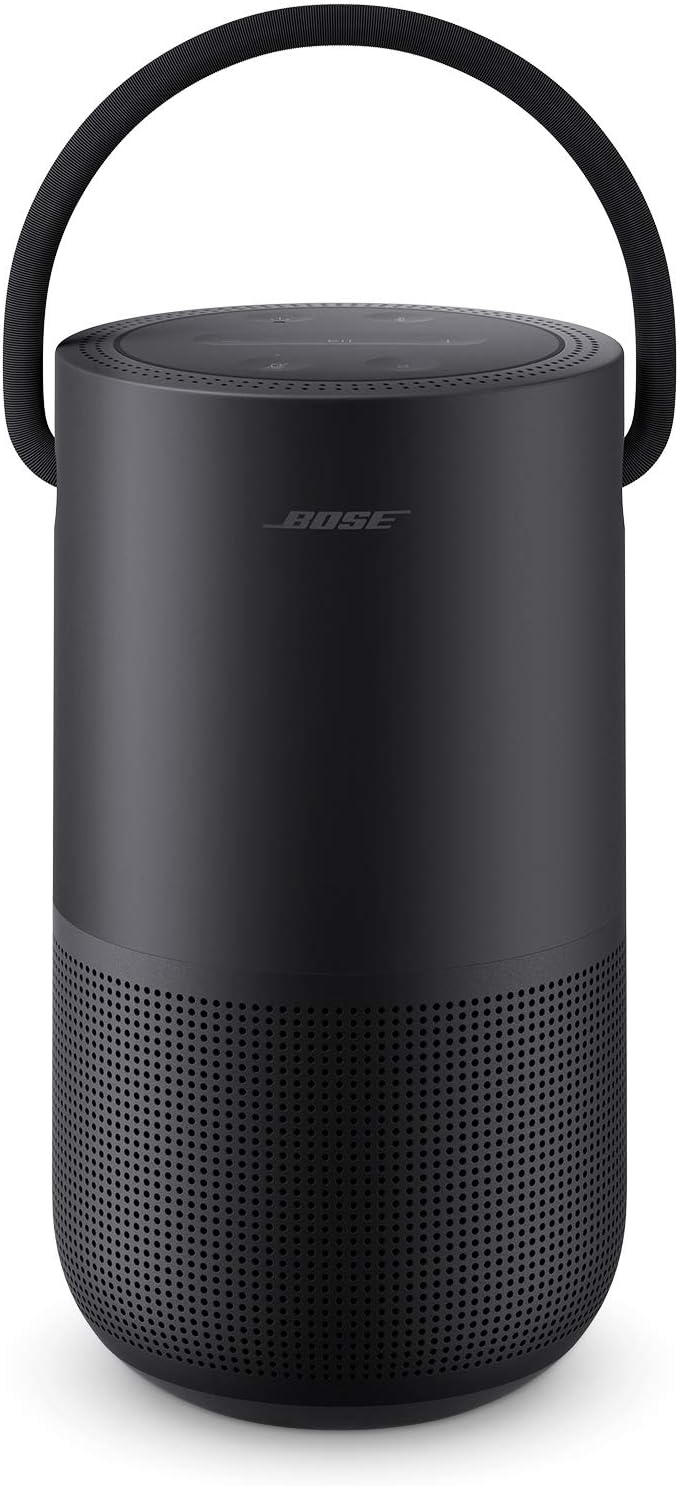
Why Does My Bose Speaker Keep Losing WiFi?
- Weak WiFi signal at the speaker's location
- Router reboot or DHCP lease change reassigning the IP
- 2.4GHz/5GHz congestion or band-steering issues
Problem Description
Your Bose smart speaker keeps losing its WiFi connection - it drops offline in the Bose Music app, interrupts streaming, or loses voice control until it reconnects. Bose Music speakers are dual-band WiFi devices, so drops usually trace to weak signal at the speaker, router or DHCP behavior, or network congestion rather than a hardware fault. This guide covers stabilizing the speaker's WiFi so streaming and voice stay reliable.
Why This Happens in Real Homes
A Bose smart speaker that keeps dropping WiFi is almost always fighting signal or the network layer, not failing. Bose Music speakers are dual-band, so they can use 2.4GHz or 5GHz, but a speaker placed far from the router or in a dense-WiFi environment still lands on a marginal signal that drops under load - streaming and voice are the first things to suffer. Improving coverage at the speaker's spot, with a mesh node or better placement, and moving to a less congested channel resolve most chronic drops.
The tell-tale timing points at the network layer: a speaker that goes offline at the same time every night, or right after a router reboot, is usually being knocked off by a scheduled reboot, a DHCP lease renewal handing it a new IP, or an ISP reset. Reserving a fixed DHCP IP for the speaker stops the address churn cleanly, and it's the highest-value fix for recurring same-time drops. After any change to your WiFi name or password, the speaker needs WiFi setup re-run in the Bose Music app with the new credentials. Keep the firmware current, and check that router QoS isn't deprioritizing the speaker's traffic behind other devices.
Symptoms
- Speaker drops offline in the Bose Music app
- Streaming stops or buffers mid-song
- Voice control fails when WiFi drops
- Reconnects then drops again
- Offline after a router reboot
- Drops at the same time each day
- Works near the router, drops when far
- Multi-room playback falls out of sync
Recognize these? Here's what usually causes it.
Common Causes
- Weak WiFi signal at the speaker's location
- Router reboot or DHCP lease change reassigning the IP
- 2.4GHz/5GHz congestion or band-steering issues
- Nightly router reboot or ISP reset
- WiFi password/network changed
- Router firmware or QoS deprioritizing the speaker
- Interference from other devices/appliances
- Speaker firmware out of date
Most fixes happen in the first 3 steps.
Smart speakers are always listening for the wake word when unmuted. Review and delete your voice history regularly in the app privacy settings. Never place the speaker in bathrooms or near water sources as moisture can permanently damage internal components.
Tools & Requirements
Step-by-Step Solution
Check your WiFi network is working
Before troubleshooting the speaker, verify your WiFi is functional. Can your phone connect to the same network? Can you load a website? If WiFi is down for all devices, restart your router — unplug for 30 seconds and plug back in. After the router boots (2-3 minutes), check if the Bose speaker reconnects automatically. Most Bose smart speakers reconnect within 60 seconds after the network comes back.
Move the speaker closer to the router
Bose smart speakers have internal WiFi antennas that can struggle with weak signals, especially behind entertainment centers or in rooms far from the router. If the speaker connects intermittently, try moving it to a location with better WiFi signal. Use a WiFi analyzer app on your phone to check signal strength at the speaker location — you need at least -70 dBm for reliable streaming. Below -75 dBm, expect dropouts.
Reconnect the speaker to WiFi
In the Bose Music app, tap your speaker. If it shows Offline, tap it and select Reconnect or go to Settings > WiFi Network. If the speaker cannot find your network, factory reset the speaker WiFi by holding the power button and volume down simultaneously for 10 seconds (varies by model — check the Bose support page for your specific speaker). Then re-add the speaker in the Bose Music app and connect to your WiFi network.
Check for IP address conflicts
If the speaker connects but drops off randomly, it may have an IP address conflict with another device. Log into your router admin page and check the connected devices list. If two devices share the same IP, set up a DHCP reservation for the Bose speaker so it always gets the same unique IP address. The speaker MAC address is shown in the Bose Music app under your speaker > Settings > About.
Switch to a less congested WiFi channel
In apartment buildings with many WiFi networks, channel congestion causes connection drops. Log into your router admin page and check which channel the 2.4GHz and 5GHz bands are using. Use a WiFi analyzer app to see which channels are least crowded. Switch your router to a less congested channel. For 2.4GHz, channels 1, 6, and 11 are the only non-overlapping channels. For 5GHz, there are many more options. The Bose speaker supports both 2.4GHz and 5GHz — 5GHz typically has less congestion.
Quick Solutions
Still having issues? This is usually the deeper cause below.
This usually happens right after a router reboot or ISP change — the device rejoins the network but drops its cloud session silently.
Place your speaker in a central location at ear height for best voice pickup. Avoid corners and bookshelves which muffle the microphones. If you have multiple speakers, set up multi-room audio groups so music plays in sync across rooms.
Most WiFi drop-offs happen right after a router reboot or ISP swap — the device reconnects to the network but silently loses its cloud registration.
- Weak WiFi signal at the speaker's location
- Router reboot or DHCP lease change reassigning the IP
- 2.4GHz/5GHz congestion or band-steering issues
- Nightly router reboot or ISP reset
- WiFi password/network changed
Before you go — try one of these (they fix most cases).
Most popular upgrades chosen by Bose Smart Speaker owners.

Bose Portable Smart Speaker — Wireless Bluetooth Speaker ...

Bose Portable Smart Speaker — Wireless Bluetooth Speaker ...

Bose Portable Smart Speaker — Wireless Bluetooth Speaker ...
As an Amazon Associate we earn from qualifying purchases.
Official Manufacturer Manual
Bose provides official product documentation through their online manual rather than downloadable PDF. Access setup guides, troubleshooting steps, and product specifications for your Bose Smart Speaker.
Source: bose.com
Need More Help? Bose Support
Note: The contact information below connects you directly to Bose's official customer support team, not Trunetto. They can help with warranty claims, device replacements, and advanced technical issues.
Accessories owners commonly pair with Bose Smart Speaker.

Amazon Smart Plug, Works with Alexa, Simple Setup, Endles...

Sengled Alexa Light Bulb, S1 Auto Pairing with Alexa Devi...

Sengled Smart Light Bulbs, Color Changing Alexa/Bluetooth...
As an Amazon Associate we earn from qualifying purchases.