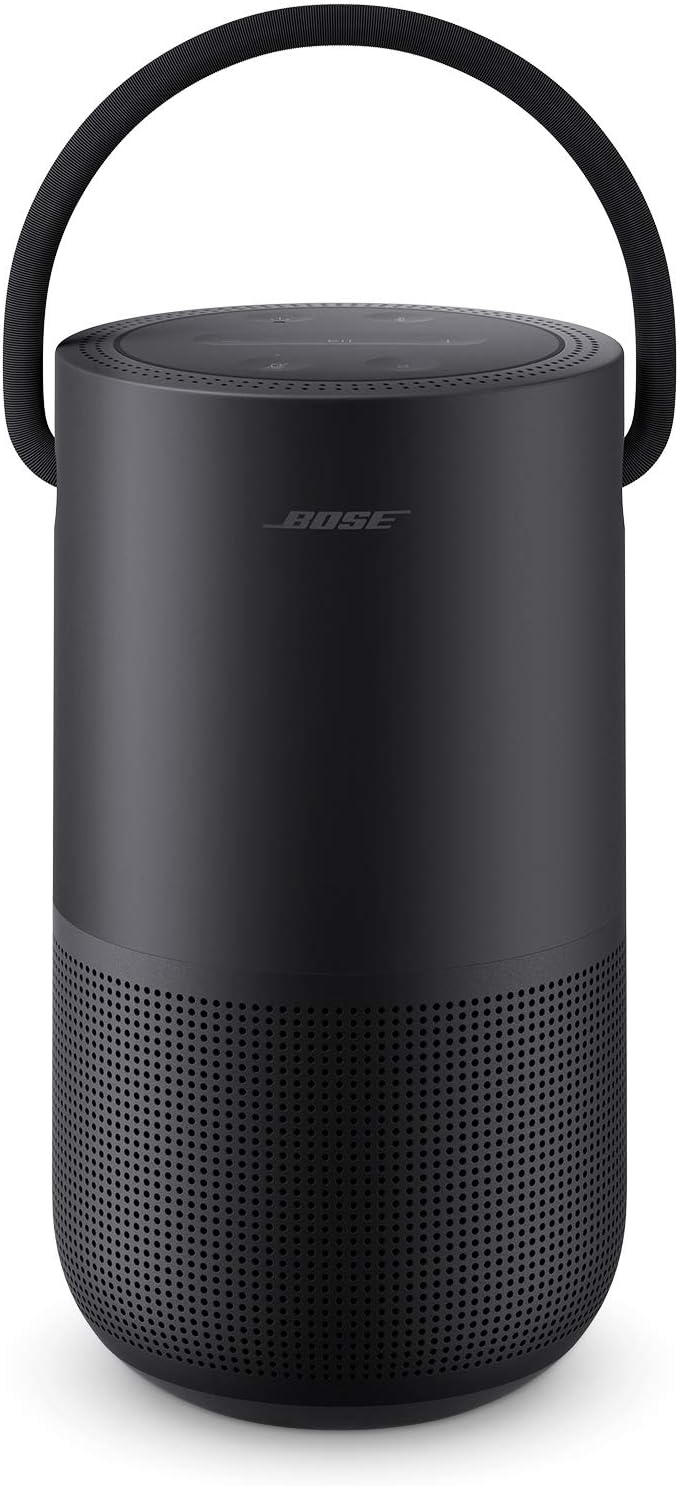
Why Won't My Bose Smart Speaker Connect to WiFi?
- Phone on a different network/band than the speaker uses
- Weak WiFi signal at the speaker during setup
- Bose Music app out of date
Problem Description
Your Bose smart speaker won't connect to WiFi during setup, or the Bose Music app can't find or control it. Setup runs through the Bose Music app and needs your phone and speaker reachable on the same network, with a good signal and the app updated. This guide covers completing WiFi setup, recovering a speaker the app can't see, and getting reliable app control.
Why This Happens in Real Homes
Bose smart speakers are set up and controlled through the Bose Music app, so 'won't connect' problems usually come down to the app not being able to reach the speaker on your network. During setup, your phone and the speaker need to be able to see each other, which means the phone should be on your main WiFi (not a guest network or a separate VLAN that isolates devices), and the app should be updated to the current version. Setting the speaker up near the router and moving it afterward helps when the final location has a weak signal.
When the app can't find or control a speaker that's already added, it's typically a connectivity or isolation issue rather than the speaker itself. AP/client isolation and guest networks block the local discovery the app relies on, and a router set to WPA3-only can cause connection trouble - dropping to WPA2/WPA3 mixed mode for setup often helps. A speaker that dropped after you changed your WiFi name or password needs WiFi setup re-run with the new credentials. If it still won't cooperate, a factory reset and fresh setup on the main network, with current firmware, clears a corrupted state. Greyed-out or timing-out controls almost always mean the speaker is offline or unreachable, not broken.
Symptoms
- Setup fails at the WiFi step
- Bose Music app can't find the speaker
- Speaker added but shows offline
- App controls are greyed out or time out
- Speaker connects then drops during setup
- App works on one phone but not another
- Speaker won't re-add after a network change
- No sound or control from the app
Recognize these? Here's what usually causes it.
Common Causes
- Phone on a different network/band than the speaker uses
- Weak WiFi signal at the speaker during setup
- Bose Music app out of date
- WiFi password entered incorrectly
- Router isolating the speaker (guest/VLAN/AP isolation)
- Speaker not in setup mode
- Router security (WPA3-only) causing issues
- Speaker firmware out of date
Most fixes happen in the first 3 steps.
Alexa built-in requires linking Amazon account in Bose Music app.
Tools & Requirements
Step-by-Step Solution
Verify phone and speaker are on same LAN
Make sure setup phone and Bose speaker are connected to the same local network segment. Discovery failures are common when devices are split by guest isolation.
Check 2.4GHz/5GHz router compatibility settings
Use standard WPA2/WPA3 home settings and disable restrictive client isolation features while troubleshooting. Aggressive network policies can block app pairing.
Restart speaker, app, and router in sequence
Reboot router first, then power-cycle speaker, then reopen the Bose app. Ordered restart clears stale IP and multicast discovery state.
Clear app cache and reauthenticate account
Sign out and back in to refresh token state, then retry device discovery. Corrupted app session data can prevent control despite healthy WiFi link.
Apply firmware updates and retest multi-room
Install available firmware and verify playback and grouping stability across rooms. Remaining issues after updates usually point to LAN multicast filtering.
Quick Solutions
Still having issues? This is usually the deeper cause below.
This usually happens right after a router reboot or ISP change — the device rejoins the network but drops its cloud session silently.
Place your speaker in a central location at ear height for best voice pickup. Avoid corners and bookshelves which muffle the microphones. If you have multiple speakers, set up multi-room audio groups so music plays in sync across rooms.
Most WiFi drop-offs happen right after a router reboot or ISP swap — the device reconnects to the network but silently loses its cloud registration.
- Phone on a different network/band than the speaker uses
- Weak WiFi signal at the speaker during setup
- Bose Music app out of date
- WiFi password entered incorrectly
- Router isolating the speaker (guest/VLAN/AP isolation)
Before you go — try one of these (they fix most cases).
Most popular upgrades chosen by Bose Smart Speaker owners.

Bose Portable Smart Speaker — Wireless Bluetooth Speaker ...

Bose Portable Smart Speaker — Wireless Bluetooth Speaker ...

Bose Portable Smart Speaker — Wireless Bluetooth Speaker ...
As an Amazon Associate we earn from qualifying purchases.
Official Manufacturer Manual
Bose provides official product documentation through their online manual rather than downloadable PDF. Access setup guides, troubleshooting steps, and product specifications for your Bose Smart Speaker.
Source: bose.com
Need More Help? Bose Support
Note: The contact information below connects you directly to Bose's official customer support team, not Trunetto. They can help with warranty claims, device replacements, and advanced technical issues.