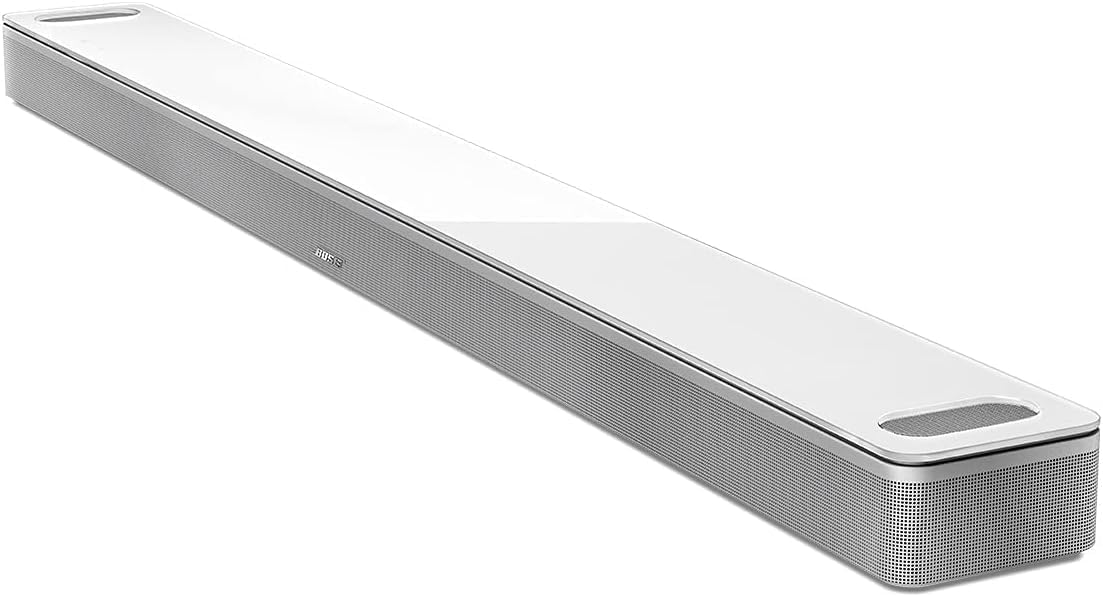
How Do I Set Up Bose Soundbar Surround Speakers?
- Surrounds not added via the Bose Music app home-theater setup
- Surrounds unpowered or not plugged in
- Surrounds out of wireless range of the soundbar
Problem Description
You want to add Bose wireless surround speakers to your Smart Soundbar, or they aren't connecting. The surround speakers pair wirelessly to the soundbar through the Bose Music app's home-theater setup and need power and a clear wireless path within range. This guide covers pairing the surrounds, placement, and fixing ones that won't connect or drop out.
Why This Happens in Real Homes
Bose wireless surround speakers turn a Smart Soundbar into a true multi-speaker home theater, and they pair to the soundbar wirelessly rather than by cable - but they still need mains power, so each surround plugs into an outlet near your seating and then connects to the soundbar through the Bose Music app's home-theater (Manage Home Theater) setup. The most common 'won't connect' cause is simply not completing that pairing step in the app, or one of the surrounds not being powered. Add them in the app, confirm both are plugged in and on.
Because the link is wireless, placement and interference matter. Keep the surrounds within the soundbar's wireless range with a reasonably clear path - thick walls, metal, or a lot of competing 2.4GHz gear between the soundbar and a surround causes dropouts. Assign left and right correctly in the app so the channels aren't reversed, and set the surround level to taste (surrounds that connect but sound too quiet usually just need the level raised in settings). Keep the soundbar firmware current, and make sure your surround speakers are a Bose model compatible with your specific soundbar, since mixing incompatible generations prevents pairing.
Symptoms
- Surround speakers won't pair to the soundbar
- Only one surround connects
- Surrounds drop out or cut in and out
- No sound from the rear speakers
- Surrounds not detected in the Bose Music app
- Left/right surrounds reversed
- Surrounds connect but are quiet
- Rears lose sync with the soundbar
Recognize these? Here's what usually causes it.
Common Causes
- Surrounds not added via the Bose Music app home-theater setup
- Surrounds unpowered or not plugged in
- Surrounds out of wireless range of the soundbar
- Obstructions/interference in the wireless path
- Speakers assigned to the wrong side (L/R)
- Soundbar firmware out of date
- Surround level set too low in the app
- Compatibility mismatch (wrong surround model)
Most fixes happen in the first 3 steps.
Smart speakers are always listening for the wake word when unmuted. Review and delete your voice history regularly in the app privacy settings. Never place the speaker in bathrooms or near water sources as moisture can permanently damage internal components.
Step-by-Step Solution
Choose compatible surround speakers
Bose soundbars work with specific surround speakers: the Bose Surround Speakers (model 809281-1100) work with the Soundbar 300 and 600. The Bose Surround Speakers 700 work with the Soundbar 700 and 900. They are not interchangeable — the 700 surround speakers do not pair with the Soundbar 300, and vice versa. Each surround speaker set includes two speakers (left and right).
Place the surround speakers correctly
Position the two surround speakers to the left and right of your seating position, slightly behind and above ear level. Ideal placement is 2-3 feet behind and 1-2 feet to the side of your ears when seated. Mount them on stands or wall brackets at approximately 4-5 feet height. Avoid placing them directly beside or in front of you — surround effects need to come from behind to create the immersive effect. Each speaker needs a power outlet (they are wired for power, wireless for audio).
Pair the surround speakers through the Bose Music app
Plug in both surround speakers. Open the Bose Music app. Tap your soundbar > Settings > Accessories > Surround Speakers > Add. The app searches for the speakers. They connect wirelessly to the soundbar using a proprietary signal (not Bluetooth). The pairing process takes 1-2 minutes. After pairing, the app asks you to identify left and right — play a test tone and confirm which speaker is on which side.
Adjust surround speaker levels
After pairing, go to the Bose Music app > your soundbar > Settings > Speaker Levels. Adjust the surround speaker volume independently from the soundbar. Most users set the surrounds at 0 (neutral) to start, then adjust: increase by +1 to +3 if you want more obvious surround effects, decrease by -1 to -3 if the surrounds are distracting or too loud relative to dialogue from the soundbar. Test with a movie that has prominent surround effects (action scenes, rain, crowd sounds).
Re-run ADAPTiQ after adding surrounds
After adding surround speakers, re-run ADAPTiQ calibration. The calibration now accounts for the surround speakers in your room and optimizes the complete 5.1 (or Atmos) system. Go to the Bose Music app > Settings > ADAPTiQ > Re-run. Sit in your 5 calibration positions wearing the ADAPTiQ headset. The soundbar sends test tones through all speakers (soundbar + surrounds + bass module if present) and creates an optimized audio profile for your room.
Quick Solutions
Still having issues? This is usually the deeper cause below.
If this comes back after following these steps, check whether a recent app or firmware update reset a default setting — the fix works, but the setting gets reverted silently.
Place your speaker in a central location at ear height for best voice pickup. Avoid corners and bookshelves which muffle the microphones. If you have multiple speakers, set up multi-room audio groups so music plays in sync across rooms.
Battery-related failures are almost always flagged too late — the device degrades silently for days before the app catches up to what's actually happening.
- Surrounds not added via the Bose Music app home-theater
- Surrounds unpowered or not plugged in
- Surrounds out of wireless range of the soundbar
- Obstructions/interference in the wireless path
- Speakers assigned to the wrong side (L/R)
Before you go — try one of these (they fix most cases).
Most popular upgrades chosen by Bose Smart Soundbar owners.
As an Amazon Associate we earn from qualifying purchases.
Official Manufacturer Manual
Bose provides official product documentation through their online manual rather than downloadable PDF. Access setup guides, troubleshooting steps, and product specifications for your Bose Smart Soundbar.
Source: support.bose.com
Need More Help? Bose Support
Note: The contact information below connects you directly to Bose's official customer support team, not Trunetto. They can help with warranty claims, device replacements, and advanced technical issues.