

Why Is There No Sound from My Bose Soundbar?
- Wrong TV audio output (TV speakers still selected)
- Cable in a non-ARC HDMI port or loose
- HDMI-CEC disabled, breaking control/handshake
Problem Description
Your Bose soundbar is not producing audio from your TV. The soundbar connects to your TV via HDMI ARC/eARC or optical cable (ports are on the back of the soundbar). No audio usually means the wrong input is selected, the cable is loose, or the TV audio output setting isn't configured for external speakers. This guide covers checking connections and TV audio settings.
Why This Happens in Real Homes
No sound from a Bose soundbar when watching TV - while music apps or Bluetooth play fine - points squarely at the TV-to-soundbar link, not the soundbar's speakers. Work three things in order. First, the TV's audio output setting: many TVs keep playing through their own speakers until you explicitly select the external soundbar (or 'audio system / ARC') in the sound settings. Second, the physical connection: the cable must be in the TV's HDMI port labeled ARC or eARC (a regular HDMI port won't carry TV audio back to the soundbar), fully seated - or, if using optical, seated and undamaged. Third, HDMI-CEC: with it disabled, the handshake and volume control between TV and soundbar break, so enable CEC (and ARC/eARC) in the TV settings.
If the connection is right but audio still drops or distorts, the culprit is usually the audio format. The TV has to output a format the soundbar accepts - setting it to PCM, or to a Dolby/bitstream format the soundbar supports, resolves silence or garbled sound caused by a format mismatch. A quick way to isolate the fault is to try the other connection method (swap HDMI for optical or vice versa): if one works, the problem is the port, cable, or CEC on the first. Updating TV and soundbar firmware clears handshake bugs.
Symptoms
- No sound from the soundbar when watching TV
- Sound works from apps/Bluetooth but not the TV
- Audio drops out intermittently
- Only some TV sources have no audio
- TV speakers still playing instead of the soundbar
- Volume controls do nothing
- No audio after an input/HDMI change
- Distorted or wrong-format audio
Recognize these? Here's what usually causes it.
Common Causes
- Wrong TV audio output (TV speakers still selected)
- Cable in a non-ARC HDMI port or loose
- HDMI-CEC disabled, breaking control/handshake
- TV audio format incompatible (needs PCM or bitstream match)
- Wrong soundbar source selected (TV vs optical vs BT)
- Optical cable loose or damaged
- eARC/ARC not enabled in the TV settings
- Soundbar or TV firmware issue
Most fixes happen in the first 3 steps.
Optical cable is backup if HDMI ARC doesn't work.
Step-by-Step Solution
Check the HDMI or optical cable connection
Unplug and reseat the HDMI cable on both ends — at the soundbar and at the TV ARC/eARC port. Make sure the HDMI cable is plugged into the correct TV port (look for the ARC or eARC label). Not all HDMI ports on a TV support ARC. If using optical: check that the cable is fully seated in both the TV optical out and the soundbar optical in. Optical cables have a directional tab that only fits one way — do not force them.
Set the TV audio output to external speaker
Many TVs default to internal speakers even with a soundbar connected. Go to your TV Settings > Sound > Sound Output and select HDMI ARC, External Speaker, or Receiver (wording varies by TV brand). On Samsung: Sound > Sound Output > Receiver (HDMI). On LG: Sound > Sound Out > HDMI ARC. On Sony: Display & Sound > Audio Output > Audio System. On Vizio: Audio > Speakers > HDMI ARC. The TV should stop playing through its built-in speakers.
Enable CEC and ARC on the TV
HDMI ARC requires CEC (Consumer Electronics Control) to be enabled on both the TV and soundbar. On Samsung TVs, CEC is called Anynet+. On LG: SimpLink. On Sony: Bravia Sync. On Vizio: CEC. Go to TV Settings and find the CEC option — make sure it is on. Also check that ARC or eARC is enabled in the TV HDMI settings (some TVs have a separate ARC toggle). After enabling, power cycle both the TV and soundbar.
Switch the soundbar to the correct input
Bose soundbars have multiple inputs. Press the input button on the soundbar remote or the soundbar itself to cycle through inputs: TV (HDMI ARC), HDMI (HDMI input for external devices), Bluetooth, AUX. Make sure it is set to TV for audio from your TV. In the Bose Music app, you can also see and switch the current source. If the soundbar is stuck on Bluetooth, it will not play TV audio — switch to TV input.
Try a different HDMI cable
If you confirmed all settings are correct and still get no audio: the HDMI cable may be faulty. This is more common than you might expect — cables can develop internal breaks, especially at the connector. Try a different HDMI cable, preferably a certified High Speed or Ultra High Speed HDMI cable that supports ARC/eARC. If swapping the cable fixes the issue, discard the old one. If this doesn't help with a new cable, try the optical connection as a fallback.
Quick Solutions
Still having issues? This is usually the deeper cause below.
If this comes back after following these steps, check whether a recent app or firmware update reset a default setting — the fix works, but the setting gets reverted silently.
Place your speaker in a central location at ear height for best voice pickup. Avoid corners and bookshelves which muffle the microphones. If you have multiple speakers, set up multi-room audio groups so music plays in sync across rooms.
This issue almost always looks more complex than it is — the majority of cases trace back to a single setting, a stale credential, or a default that shipped wrong.
- Wrong TV audio output (TV speakers still selected)
- Cable in a non-ARC HDMI port or loose
- HDMI-CEC disabled, breaking control/handshake
- TV audio format incompatible (needs PCM or bitstream match)
- Wrong soundbar source selected (TV vs optical vs BT)
Before you go — try one of these (they fix most cases).
Most popular upgrades chosen by Bose Soundbar owners.
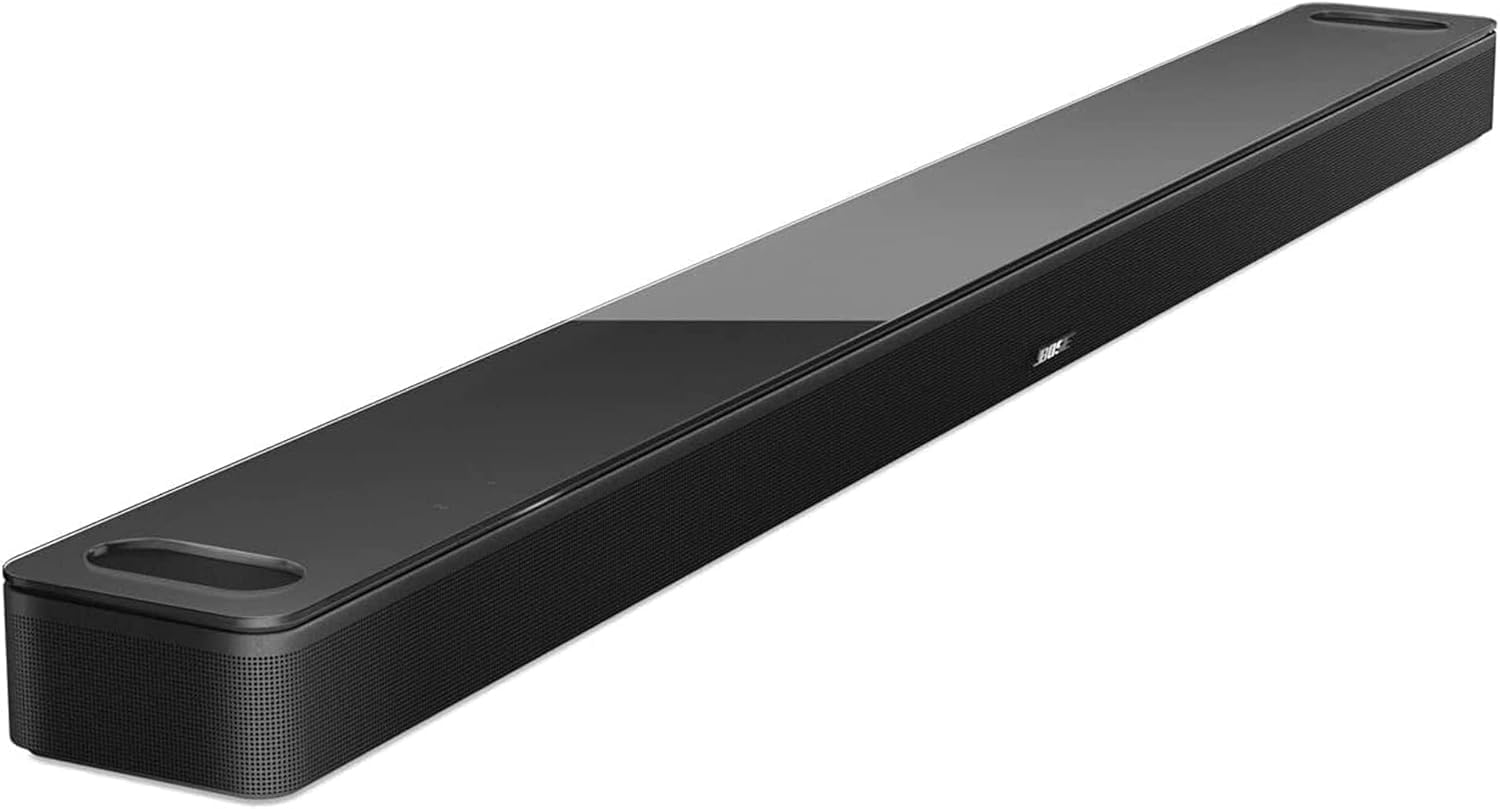
Bose Smart Soundbar 900 Dolby Atmos with Alexa Built-In, ...

Bose Smart Ultra Dolby Atmos Soundbar, All-in-One Surroun...
As an Amazon Associate we earn from qualifying purchases.
Official Manufacturer Manual
Bose provides official product documentation through their online manual rather than downloadable PDF. Access setup guides, troubleshooting steps, and product specifications for your Bose Soundbar.
Source: support.bose.com
Need More Help? Bose Support
Note: The contact information below connects you directly to Bose's official customer support team, not Trunetto. They can help with warranty claims, device replacements, and advanced technical issues.

