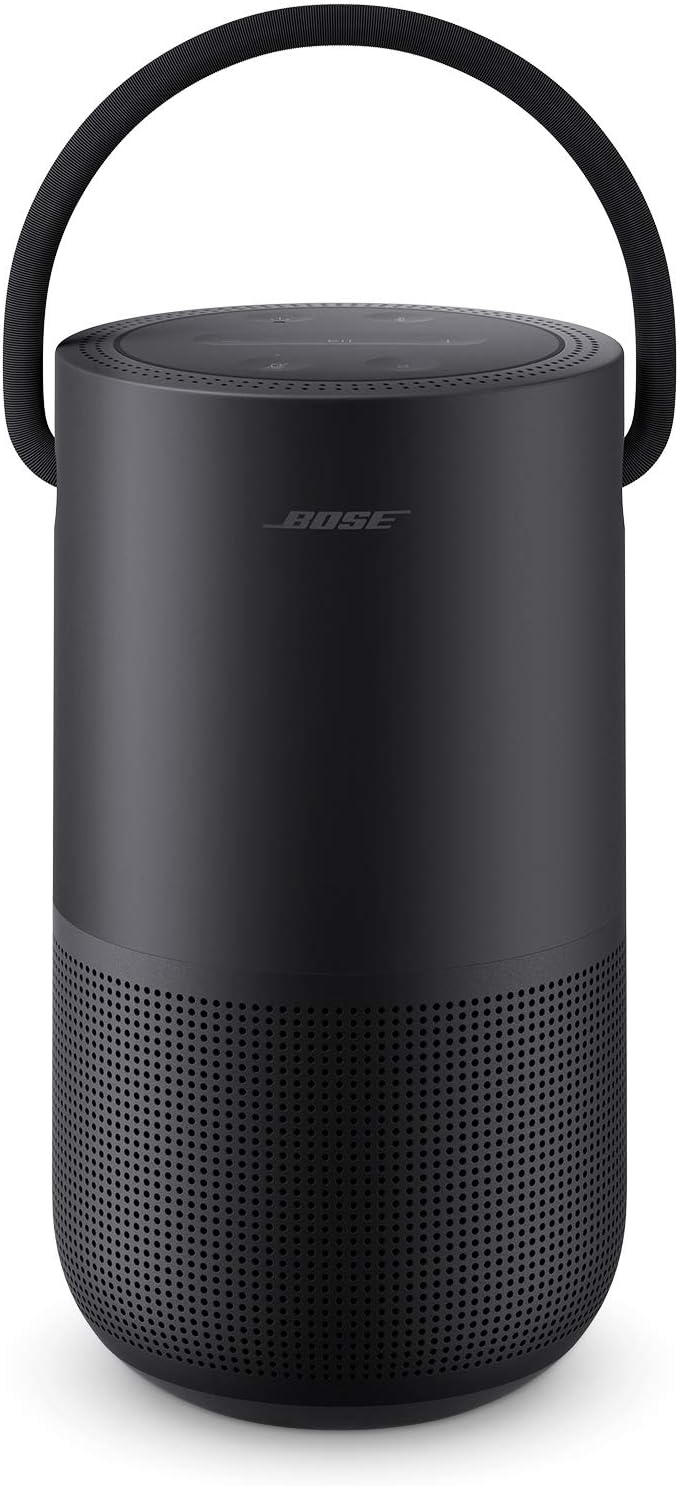
Why Won't My Bose Smart Speaker Voice Assistant Respond?
- Microphone muted (red LED bar) via the top button
- Voice assistant not set up or not selected in the app
- WiFi connection weak or dropped
Problem Description
Your Bose smart speaker is not responding to voice commands from Alexa or Google Assistant. The speaker has a microphone mute button on the top — when muted, a red LED bar appears and the speaker ignores all voice commands. This guide covers checking mute status, verifying the voice assistant is set up, and fixing microphone issues.
Why This Happens in Real Homes
When a Bose smart speaker ignores voice commands, the first thing to check is the microphone mute - the speaker has a mic button on top, and when it's muted a red LED bar appears and the speaker deliberately ignores all voice input. This is the single most common cause of 'my speaker won't respond,' and pressing the button to clear the red bar fixes it instantly. It's an easy accidental press, especially on a speaker people handle.
If the mic is live and it still won't respond, the issue is setup or connectivity. Bose Music speakers have Alexa and Google Assistant built in, but you have to choose and set one up in the Bose Music app - a speaker that plays music fine but 'can't help' with voice usually has no assistant configured, or the account link expired. Because the assistant runs in the cloud, a weak or dropped WiFi connection also breaks voice while local playback keeps working, so confirm the speaker is solidly online. Re-linking the assistant account (and any smart-home skills), keeping the firmware updated, and making sure the assistant you chose actually controls your smart-home devices round out the fixes.
Symptoms
- Speaker ignores the wake word
- Red LED bar showing on top (mic muted)
- Voice assistant set up but not responding
- Assistant responds slowly or mishears
- Works for music but not voice commands
- Voice control stopped after an update
- Assistant says it can't help / not set up
- Smart-home voice commands fail
Recognize these? Here's what usually causes it.
Common Causes
- Microphone muted (red LED bar) via the top button
- Voice assistant not set up or not selected in the app
- WiFi connection weak or dropped
- Account not linked (Alexa/Google or smart-home skill)
- Software/firmware needs updating
- Background noise or distance affecting recognition
- Wrong assistant chosen for the smart-home devices
- Speaker offline in the Bose Music app
Most fixes happen in the first 3 steps.
SimpleSync connects Bose soundbars to other Bose speakers.
Step-by-Step Solution
Check microphone mute status
All Bose smart speakers have a microphone mute button. When muted, the speaker ignores wake words completely. On the Home Speaker 500, the microphone light bar turns red when muted. On the Soundbar 700/900, a red indicator appears on the light bar. Press the microphone button to unmute. The speaker should respond to its wake word (Alexa or Hey Google) immediately after unmuting.
Check WiFi connection
Voice assistants require an active internet connection — the wake word is detected locally, but all voice processing happens in the cloud. If your WiFi is down, the speaker cannot process voice commands. Check your speaker in the Bose Music app — it should show as Connected. If it shows Offline, check your router. Try streaming music through the app to verify the connection — if music plays over WiFi, the connection is working.
Re-authorize the voice assistant account
Voice assistant tokens can expire, requiring re-authorization. In the Bose Music app, go to your speaker > Settings > Voice Assistant. If the status shows Inactive or an error, tap the assistant and re-sign in with your Amazon or Google account. The app redirects to the account login page. After signing in, the voice assistant should activate immediately — test by saying the wake word.
Reset the voice assistant
In the Bose Music app, go to your speaker > Settings > Voice Assistant. Tap the currently active assistant and select Remove. Wait 30 seconds. Then add the assistant again by selecting it and signing in. This resets the voice assistant connection without affecting the rest of the speaker settings (WiFi, presets, EQ). After re-adding, test all functions: music requests, smart home commands, timers, and general questions.
Check for firmware updates
Voice assistant features are tied to specific firmware versions. If the speaker firmware is outdated, voice assistant functions may not work correctly. In the Bose Music app, go to your speaker > Settings > About > Software Version. If an update is available, it downloads and installs automatically (keep the speaker plugged in and on WiFi). The update takes 10-20 minutes. After the update, test the voice assistant again.
Quick Solutions
Still having issues? This is usually the deeper cause below.
If voice commands stopped working after relinking the account, check that the skill or action is still enabled — relinking sometimes disables it silently.
Place your speaker in a central location at ear height for best voice pickup. Avoid corners and bookshelves which muffle the microphones. If you have multiple speakers, set up multi-room audio groups so music plays in sync across rooms.
This issue almost always looks more complex than it is — the majority of cases trace back to a single setting, a stale credential, or a default that shipped wrong.
- Microphone muted (red LED bar) via the top button
- Voice assistant not set up or not selected in
- WiFi connection weak or dropped
- Account not linked (Alexa/Google or smart-home skill)
- Software/firmware needs updating
Before you go — try one of these (they fix most cases).
Most popular upgrades chosen by Bose Smart Speaker owners.

Bose Portable Smart Speaker — Wireless Bluetooth Speaker ...

Bose Portable Smart Speaker — Wireless Bluetooth Speaker ...

Bose Portable Smart Speaker — Wireless Bluetooth Speaker ...
As an Amazon Associate we earn from qualifying purchases.
Official Manufacturer Manual
Bose provides official product documentation through their online manual rather than downloadable PDF. Access setup guides, troubleshooting steps, and product specifications for your Bose Smart Speaker.
Source: bose.com
Need More Help? Bose Support
Note: The contact information below connects you directly to Bose's official customer support team, not Trunetto. They can help with warranty claims, device replacements, and advanced technical issues.