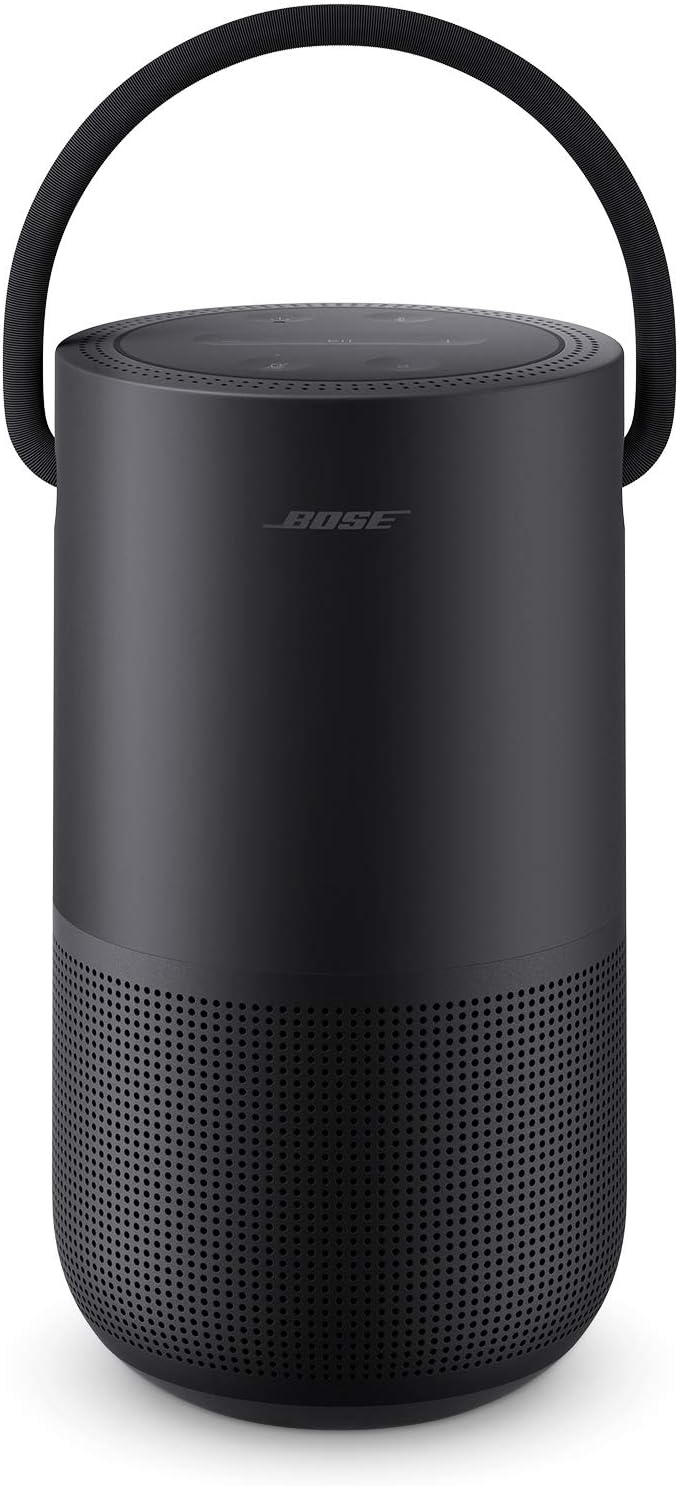
Why Won't My Bose Speaker Pair via Bluetooth?
- Speaker not in discoverable/pairing mode
- Speaker auto-reconnecting to a previously paired device
- Paired-device memory full (holds a limited number)
Problem Description
Your Bose speaker won't pair with a Bluetooth device. To enter Bluetooth pairing mode, press and hold the Bluetooth button on the top of the speaker until the LED indicator flashes blue. The speaker must be in discoverable mode to appear in your phone's Bluetooth settings. This guide covers entering pairing mode and connecting.
Why This Happens in Real Homes
Pairing a Bose speaker over Bluetooth starts with putting it into discoverable mode: press and hold the Bluetooth button on top until the LED indicator flashes blue, which makes it appear in your phone's Bluetooth settings. The most common reason a speaker 'won't pair' is that it's silently reconnecting to a device it already knows - Bose speakers remember multiple paired devices and grab the first available one, so a phone or laptop nearby can snatch the connection before your new device gets it. Turning off Bluetooth on that other device, or disconnecting it, frees the speaker to pair with what you want.
The other frequent issue is a full paired-device list. Bose speakers store a limited number of devices, and once full, new pairings can fail until you clear the list (the app or a button sequence clears it, depending on model). Keep the phone close during pairing, since a weak Bluetooth link times out, and reduce nearby 2.4GHz interference from other wireless gear. If you use the speaker on WiFi too, make sure it's actually set to the Bluetooth source when you want Bluetooth audio. A firmware update via the Bose Music app resolves lingering pairing quirks.
Symptoms
- Speaker doesn't appear in the phone's Bluetooth list
- Won't enter pairing mode
- Pairs then disconnects
- Connects to the wrong/previous device
- Bluetooth audio cuts out
- Can't pair a second device
- LED not flashing blue during pairing
- Pairing fails after a factory reset
Recognize these? Here's what usually causes it.
Common Causes
- Speaker not in discoverable/pairing mode
- Speaker auto-reconnecting to a previously paired device
- Paired-device memory full (holds a limited number)
- Phone too far during pairing
- Bluetooth interference from other 2.4GHz devices
- Bluetooth disabled on the phone
- Speaker on WiFi and not switched to Bluetooth source
- Firmware out of date
Most fixes happen in the first 3 steps.
Bose Connect app provides easier device management than phone Bluetooth settings.
Tools & Requirements
Step-by-Step Solution
Enter Bluetooth pairing mode
On the Bose Portable Home Speaker, press the Bluetooth button on the top. The Bluetooth LED blinks blue, indicating pairing mode. The speaker is discoverable for 2 minutes. On Bose SoundLink speakers: hold the Bluetooth button until you hear the pairing prompt or the LED blinks. Each Bose speaker model has a slightly different button location — check the top or side of the speaker.
Pair from your phone or tablet
On your phone, go to Settings > Bluetooth. Make sure Bluetooth is on. Look for the Bose speaker in the list of available devices (it shows the speaker name, like Bose Portable Home Speaker). Tap it to connect. If prompted for a PIN, enter 0000 (default for Bose). After pairing, the speaker LED turns solid blue and the speaker announces that the connection is established.
Pair with a second device
The Bose Portable Home Speaker can remember up to 8 paired devices and connect to 1 at a time. To pair a second device: put the speaker in pairing mode again (press Bluetooth button), then pair from the second device. To switch between paired devices: disconnect Bluetooth on the current device, then connect from the other device. The speaker does not support simultaneous connections from multiple devices.
Fix pairing failures
If your phone does not see the speaker in the Bluetooth list: make sure the speaker is in pairing mode (LED blinking blue, not solid). Turn Bluetooth off and on again on your phone. Restart the speaker. If the speaker was previously paired to this phone, forget the device (phone Settings > Bluetooth > Bose speaker > Forget This Device) and re-pair from scratch. Also check distance — stay within 15 feet during pairing.
Fix audio dropping or stuttering over Bluetooth
Bluetooth audio quality depends on distance and interference. Stay within 30 feet of the speaker. Walls and obstacles reduce effective range. WiFi routers, microwaves, and other Bluetooth devices can cause interference. If audio stutters: move your phone closer to the speaker, close unnecessary Bluetooth connections on your phone, and reduce the number of active Bluetooth devices nearby. For the best audio quality at home, use WiFi streaming (Spotify Connect or AirPlay 2) instead of Bluetooth.
Quick Solutions
Still having issues? This is usually the deeper cause below.
If pairing fails after multiple attempts, the device may still be registered to a previous account — factory-reset it before trying to add it to a new one.
Place your speaker in a central location at ear height for best voice pickup. Avoid corners and bookshelves which muffle the microphones. If you have multiple speakers, set up multi-room audio groups so music plays in sync across rooms.
Pairing failures almost always come down to distance during the initial handshake — manufacturers seriously understate how close you actually need to be.
- Speaker not in discoverable/pairing mode
- Speaker auto-reconnecting to a previously paired device
- Paired-device memory full (holds a limited number)
- Phone too far during pairing
- Bluetooth interference from other 2.4GHz devices
Before you go — try one of these (they fix most cases).
Most popular upgrades chosen by Bose Portable Speaker owners.

Bose Portable Smart Speaker — Wireless Bluetooth Speaker ...
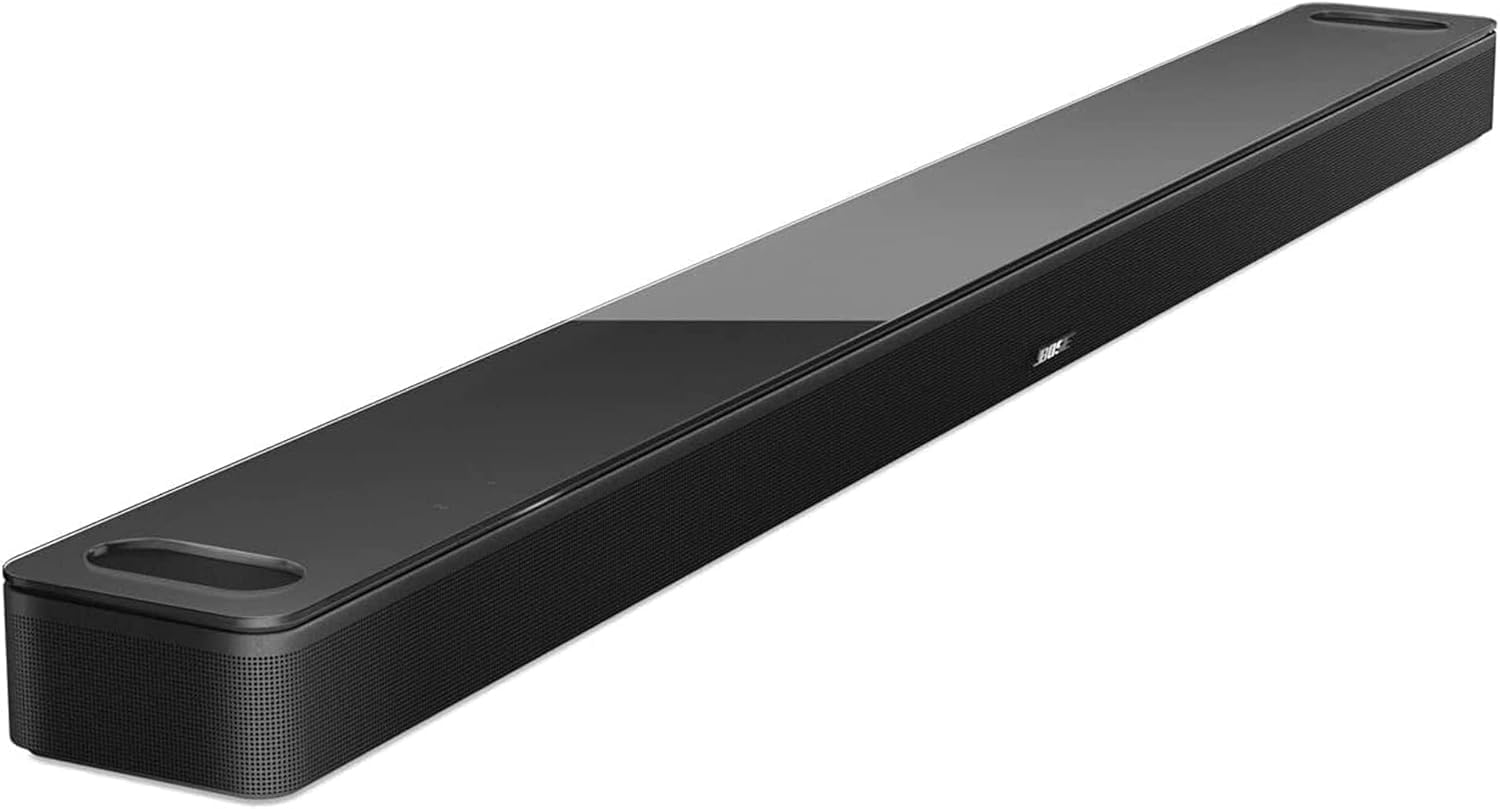
Bose Smart Soundbar 900 Dolby Atmos with Alexa Built-In, ...

Bose Portable Smart Speaker — Wireless Bluetooth Speaker ...
As an Amazon Associate we earn from qualifying purchases.
Official Manufacturer Manual
Bose provides official product documentation through their online manual rather than downloadable PDF. Access setup guides, troubleshooting steps, and product specifications for your Bose Portable Speaker.
Source: support.bose.com
Need More Help? Bose Support
Note: The contact information below connects you directly to Bose's official customer support team, not Trunetto. They can help with warranty claims, device replacements, and advanced technical issues.