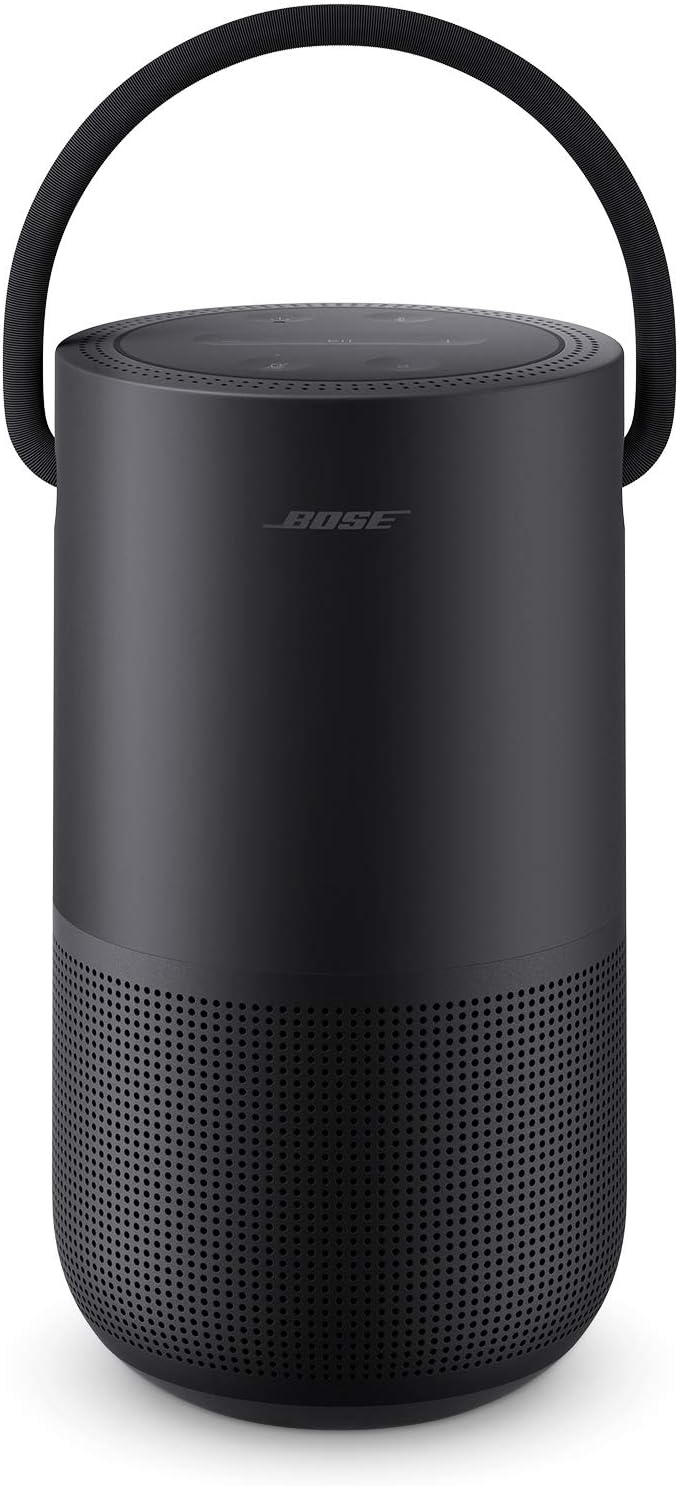
How Do I Set Up the Bose Portable Home Speaker?
- Battery depleted or not charged via USB-C
- Weak/incorrect USB-C charger or cable
- WiFi setup done off the intended network
Problem Description
You are setting up the Bose Portable Home Speaker. The speaker has a built-in battery that charges via the USB-C port on the back. It supports WiFi (through the Bose Music app), Bluetooth, and AirPlay 2. This guide covers charging, WiFi and Bluetooth setup, and configuring voice assistant integration.
Why This Happens in Real Homes
The Bose Portable Home Speaker is the battery-powered member of the Bose Music family: it charges over USB-C, and it supports WiFi (with AirPlay 2 and built-in Alexa or Google Assistant) as well as Bluetooth, so it works both as a home smart speaker and a grab-and-go Bluetooth speaker. Start by charging it fully with a proper USB-C charger - an underpowered charger or a weak cable is a common reason it seems slow to charge or won't power on. Set up WiFi through the Bose Music app on the network you want it to use.
Because it's portable, its connection changes as you move it. On WiFi it does voice control, AirPlay 2, and multi-room; carry it out of WiFi range and it falls back to Bluetooth, which is normal behavior rather than a fault. For Bluetooth, hold the Bluetooth button until the indicator flashes to enter pairing mode. Voice control still requires setting up Alexa or Google in the app, and streaming accounts need linking there. If battery life seems short, it's usually WiFi straining at the edge of coverage or the speaker staying awake for voice - both improve with better placement when it's used as a stationary speaker.
Symptoms
- Speaker won't charge or power on
- Won't connect to WiFi during setup
- Bluetooth won't pair
- Battery drains quickly
- Voice assistant not responding
- AirPlay 2 not showing the speaker
- Drops WiFi when carried around the house
- No sound after setup
Recognize these? Here's what usually causes it.
Common Causes
- Battery depleted or not charged via USB-C
- Weak/incorrect USB-C charger or cable
- WiFi setup done off the intended network
- Weak WiFi signal where the speaker roams
- Bluetooth not in pairing mode
- Voice assistant not set up in the app
- Bose Music app not updated
- Speaker moved out of WiFi range (falls back to BT)
Most fixes happen in the first 3 steps.
Smart speakers are always listening for the wake word when unmuted. Review and delete your voice history regularly in the app privacy settings. Never place the speaker in bathrooms or near water sources as moisture can permanently damage internal components.
Step-by-Step Solution
Charge and power on the Portable Home Speaker
The Bose Portable Home Speaker has a built-in rechargeable battery that lasts approximately 12 hours on a full charge. Charge using the included USB-C cable plugged into any USB charger (the optional charging cradle charges by contact — just set the speaker on the cradle). When unplugged, the speaker works as a portable Bluetooth speaker. When plugged in and on WiFi, it works as a full smart speaker with voice assistant and AirPlay.
Connect to WiFi and set up the Bose Music app
Download the Bose Music app. Power on the speaker (press the power button on the back). Open the app and tap Add Product. The app discovers the speaker via Bluetooth and walks you through WiFi setup. The speaker supports both 2.4GHz and 5GHz networks. After WiFi connection, the speaker enables its smart features: voice assistant, AirPlay 2, Spotify Connect, and multi-room grouping.
Switch between WiFi and Bluetooth modes
When connected to your home WiFi, the speaker operates in WiFi mode with full smart features. When you take it on the go (no WiFi), it switches to Bluetooth mode automatically. Press the Bluetooth button on top to enter Bluetooth pairing mode for new devices. The speaker remembers up to 8 paired Bluetooth devices and reconnects automatically. Note: voice assistant, AirPlay, and Spotify Connect require WiFi — they do not work in Bluetooth-only mode.
Use the speaker outdoors and in wet conditions
The Portable Home Speaker is rated IPX4 — it handles splashes from any direction but should not be submerged. Safe for poolside, deck, or rain exposure. Do not charge while wet — dry the USB-C port before plugging in the charger. The 360-degree speaker design projects sound evenly in all directions, making it well-suited for outdoor gatherings where listeners are in different positions around the speaker.
Extend battery life and monitor charge level
Battery level shows on the Bose Music app when the speaker is connected. To extend battery life: lower the volume (high volume drains the battery faster — 50% volume doubles play time compared to max volume), turn off the voice assistant microphone when outdoors (press the microphone mute button), and turn off the speaker completely when not in use (hold power button for 2 seconds). The battery charges from 0 to 100% in approximately 4 hours via USB-C.
Quick Solutions
Still having issues? This is usually the deeper cause below.
If this comes back after following these steps, check whether a recent app or firmware update reset a default setting — the fix works, but the setting gets reverted silently.
Place your speaker in a central location at ear height for best voice pickup. Avoid corners and bookshelves which muffle the microphones. If you have multiple speakers, set up multi-room audio groups so music plays in sync across rooms.
Battery-related failures are almost always flagged too late — the device degrades silently for days before the app catches up to what's actually happening.
- Battery depleted or not charged via USB-C
- Weak/incorrect USB-C charger or cable
- WiFi setup done off the intended network
- Weak WiFi signal where the speaker roams
- Bluetooth not in pairing mode
Before you go — try one of these (they fix most cases).
Most popular upgrades chosen by Bose Portable owners.

Bose Portable Smart Speaker — Wireless Bluetooth Speaker ...

Bose Portable Smart Speaker — Wireless Bluetooth Speaker ...

Bose Portable Smart Speaker — Wireless Bluetooth Speaker ...
As an Amazon Associate we earn from qualifying purchases.
Official Manufacturer Manual
Bose provides official product documentation through their online manual rather than downloadable PDF. Access setup guides, troubleshooting steps, and product specifications for your Bose Portable.
Source: support.bose.com
Need More Help? Bose Support
Note: The contact information below connects you directly to Bose's official customer support team, not Trunetto. They can help with warranty claims, device replacements, and advanced technical issues.