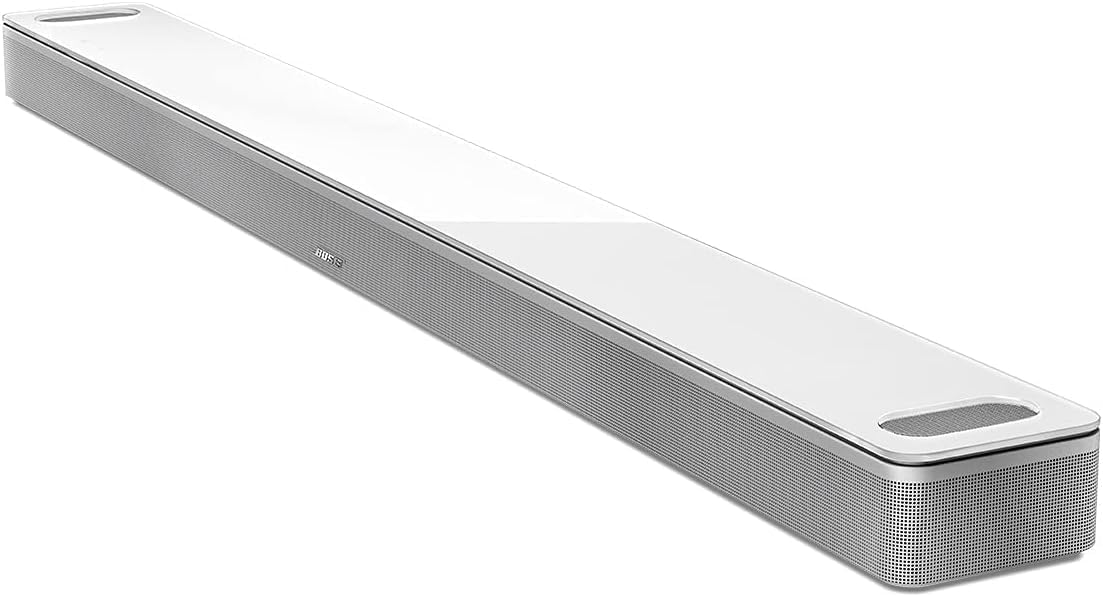
How Do I Set Up Alexa on My Bose Smart Soundbar?
- Microphone muted on the soundbar
- Alexa not selected/set up in the Bose Music app
- Amazon account not linked
Problem Description
You want to set up Alexa on your Bose Smart Soundbar so it responds to voice commands. Bose smart soundbars have Alexa (and Google Assistant) built in, configured through the Bose Music app - but voice only works once the soundbar is on WiFi, the assistant is selected and its account linked, and the microphone isn't muted. This guide covers enabling Alexa and fixing a soundbar that won't respond to the wake word.
Why This Happens in Real Homes
Bose smart soundbars have Alexa built in, and you enable it through the Bose Music app rather than the Alexa app. The prerequisites are simple but easy to miss: the soundbar has to be connected to WiFi first (voice runs in the cloud), and in Bose Music you select Alexa as your voice assistant and link your Amazon account. Note that Bose soundbars run one assistant at a time - if Google Assistant is selected, Alexa won't respond until you switch, so pick the one you want.
Once Alexa is set up, the number-one reason a soundbar 'won't respond' is a muted microphone. The soundbar has a mic mute control, and when it's muted an indicator shows and the soundbar ignores the wake word entirely - unmuting fixes it instantly. If the mic is live and it's on WiFi with the account linked, remaining issues are usually connectivity (a soundbar offline in the app can't reach Alexa) or a pending software update. Keep the firmware current, speak within range with minimal background noise, and confirm the soundbar is online. For smart-home voice control, make sure your devices are set up under the same Amazon account.
Symptoms
- Alexa not responding on the soundbar
- No option to set up Alexa in the app
- Red mic LED showing (mic muted)
- Alexa set up but ignores the wake word
- Alexa responds slowly or mishears
- Voice control stopped after an update
- Music plays but voice commands fail
- Smart-home Alexa commands don't work
Recognize these? Here's what usually causes it.
Common Causes
- Microphone muted on the soundbar
- Alexa not selected/set up in the Bose Music app
- Amazon account not linked
- Soundbar not connected to WiFi
- Google Assistant chosen instead of Alexa (one at a time)
- Software/firmware needs updating
- Background noise or distance affecting recognition
- Soundbar offline in the app
Most fixes happen in the first 3 steps.
Smart speakers are always listening for the wake word when unmuted. Review and delete your voice history regularly in the app privacy settings. Never place the speaker in bathrooms or near water sources as moisture can permanently damage internal components.
Tools & Requirements
Step-by-Step Solution
Connect the soundbar to WiFi first
Before setting up Alexa, the Bose soundbar must be connected to your WiFi network through the Bose Music app. If you have not done this: open the Bose Music app, add your soundbar, and complete the WiFi setup. The soundbar needs a stable internet connection to process Alexa voice commands — all voice processing happens in the Amazon cloud.
Enable Alexa in the Bose Music app
Open the Bose Music app. Tap your soundbar > Settings > Voice Assistant > Amazon Alexa. The app opens an Amazon login page. Sign in with your Amazon account. Grant the Bose skill permission to access your Alexa account. After authorization, Alexa is active on the soundbar. Say Alexa to test — the soundbar light bar illuminates to show it is listening.
Use Alexa to control music and smart devices
With Alexa set up, say Alexa, play jazz to play music through Amazon Music (included with Prime). Say Alexa, play my playlist on Spotify if you have a Spotify account linked to Alexa. Control smart home devices: Alexa, turn off the living room lights. Ask questions, set timers, get weather reports. The soundbar 8-microphone array picks up voice commands across the room, even during music playback.
Configure the soundbar as part of Alexa routines
In the Amazon Alexa app on your phone, go to Routines. You can include the Bose soundbar as a music player in routines. Example: a Good Morning routine can play your favorite news briefing on the Bose soundbar, turn on smart lights, and read the weather. You can also set the soundbar as the preferred speaker for Alexa responses and music — go to Devices > your Bose soundbar > Preferred Speaker in the Alexa app.
Fix Alexa not responding on the soundbar
If saying Alexa does nothing: check that the microphone is not muted (the light bar shows a red indicator when muted — press the microphone button on the soundbar to unmute). Check WiFi connection in the Bose Music app. If the soundbar is connected but Alexa does not respond, go to Settings > Voice Assistant and check if Alexa shows as Active. If it shows Inactive, re-authorize by signing into your Amazon account again. Also check for firmware updates — voice assistant features are tied to specific firmware versions.
Quick Solutions
Still having issues? This is usually the deeper cause below.
If voice commands stopped working after relinking the account, check that the skill or action is still enabled — relinking sometimes disables it silently.
["Built-in Alexa requires no extra device", "Microphone can be muted for privacy"]
This issue almost always looks more complex than it is — the majority of cases trace back to a single setting, a stale credential, or a default that shipped wrong.
- Microphone muted on the soundbar
- Alexa not selected/set up in the Bose Music app
- Amazon account not linked
- Soundbar not connected to WiFi
- Google Assistant chosen instead of Alexa (one at a
Before you go — try one of these (they fix most cases).
Most popular upgrades chosen by Bose Smart Soundbar owners.
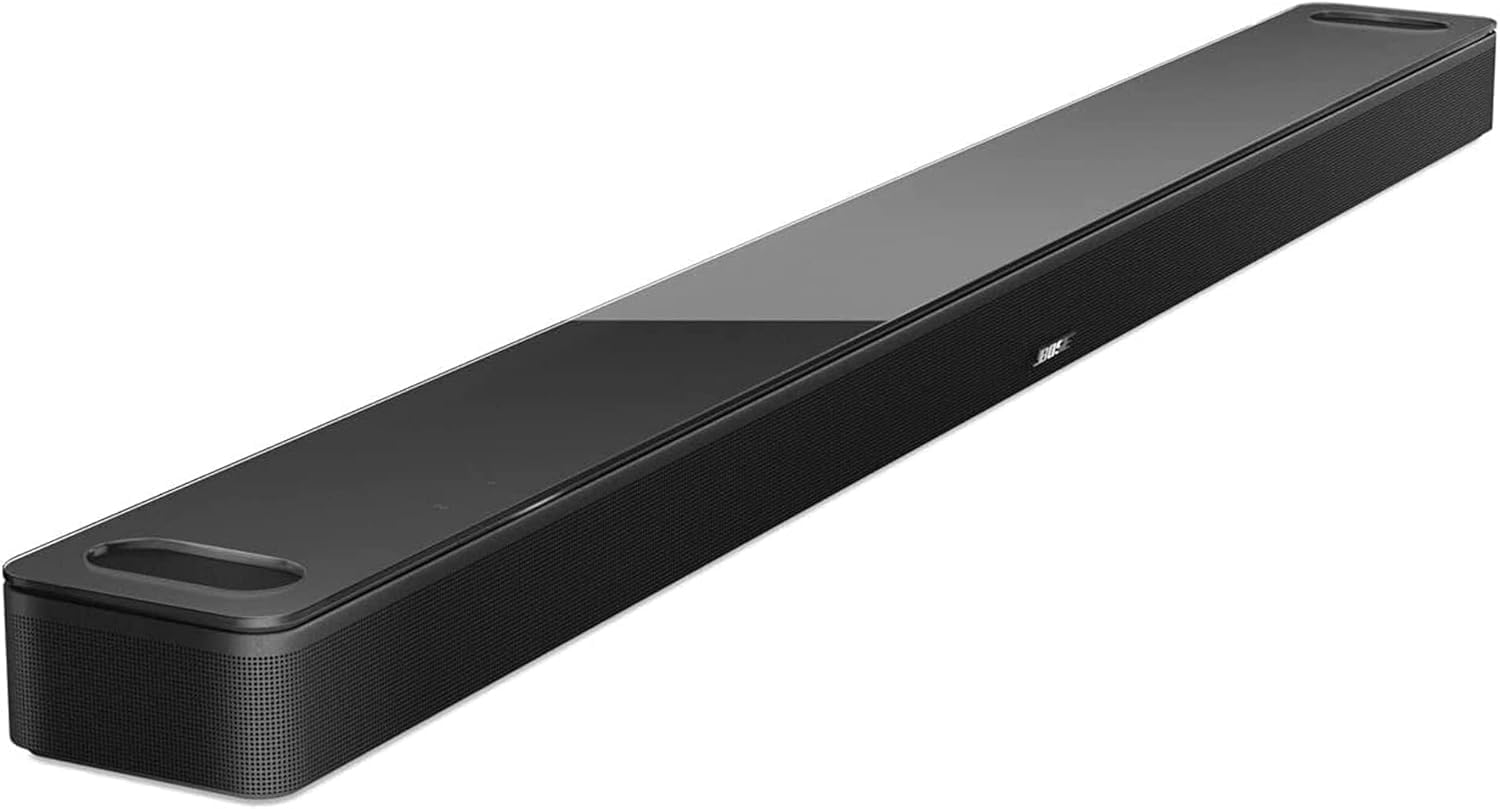
As an Amazon Associate we earn from qualifying purchases.
Official Manufacturer Manual
Bose provides official product documentation through their online manual rather than downloadable PDF. Access setup guides, troubleshooting steps, and product specifications for your Bose Smart Soundbar.
Source: support.bose.com
Need More Help? Bose Support
Note: The contact information below connects you directly to Bose's official customer support team, not Trunetto. They can help with warranty claims, device replacements, and advanced technical issues.