

How Do I Set Up the Bose Smart Soundbar 900?
- Not using the TV's HDMI eARC/ARC-labeled port
- HDMI-CEC disabled on the TV
- TV audio output not set for external speakers/bitstream
Problem Description
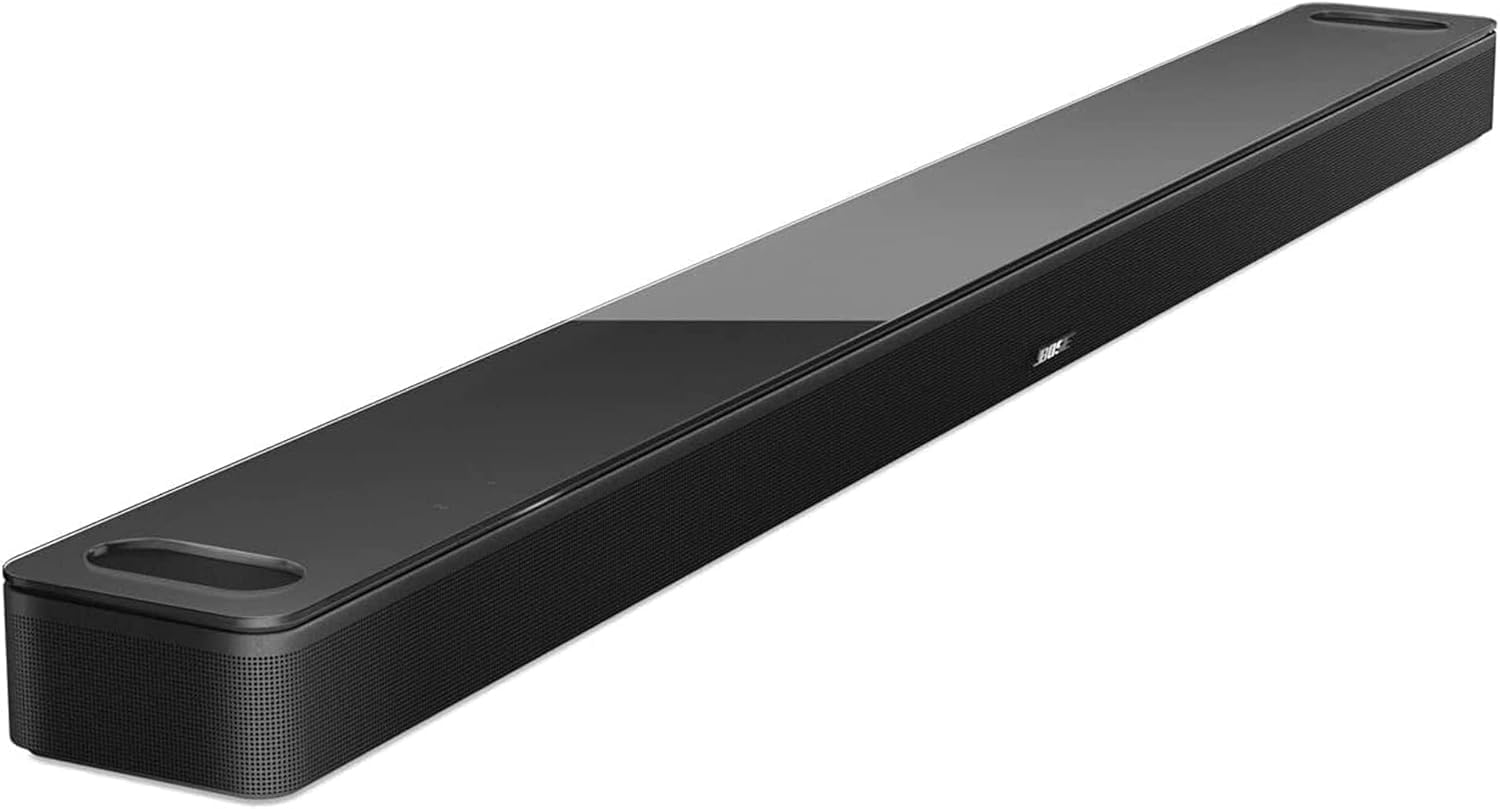
You are setting up the Bose Smart Soundbar 900 with your TV. The soundbar connects to your TV via HDMI eARC (preferred) or optical cable. The HDMI eARC port is on the back of the soundbar alongside power and optical inputs. This guide covers HDMI connection, TV audio settings, and configuring Dolby Atmos in the Bose Music app.
Why This Happens in Real Homes
The Bose Smart Soundbar 900 connects to your TV over HDMI eARC (preferred) or optical, and getting the connection right is what unlocks its best features - especially Dolby Atmos. Plug into the TV port specifically labeled eARC or ARC (not just any HDMI port), enable HDMI-CEC on the TV so the TV remote controls the soundbar's power and volume, and set the TV's audio output to bitstream/Dolby rather than PCM so Atmos and surround formats pass through. Optical works as a fallback but can't carry Atmos, so use eARC with a high-speed HDMI cable if you want the full experience.
Beyond the TV connection, the 900 is a smart, WiFi soundbar set up in the Bose Music app, where you also complete WiFi, choose Alexa or Google for voice, and run ADAPTiQ room calibration for the best sound in your space. If a wireless bass module or surround speakers aren't detected, they're added in the app's home-theater setup. For a clean install: connect eARC, enable CEC, set the TV to bitstream, finish WiFi and voice in the app, then run ADAPTiQ - handled in that order, the soundbar delivers Atmos and responds to your TV remote and voice.
Symptoms
- Connecting the soundbar to the TV (HDMI eARC vs optical)
- No audio from the TV after connecting
- Dolby Atmos not activating
- Soundbar won't join WiFi in the Bose Music app
- Voice control not responding
- ADAPTiQ calibration prompt
- Surround/bass module not detected
- TV remote won't control soundbar volume
Recognize these? Here's what usually causes it.
Common Causes
- Not using the TV's HDMI eARC/ARC-labeled port
- HDMI-CEC disabled on the TV
- TV audio output not set for external speakers/bitstream
- Optical used instead of eARC (limits Atmos)
- WiFi setup not completed in the app
- Voice assistant not set up
- Wrong/old HDMI cable for eARC
- ADAPTiQ not run for the room
Most fixes happen in the first 3 steps.
Smart speakers are always listening for the wake word when unmuted. Review and delete your voice history regularly in the app privacy settings. Never place the speaker in bathrooms or near water sources as moisture can permanently damage internal components.
Step-by-Step Solution
Connect the Soundbar 900 to your TV
The Bose Smart Soundbar 900 connects to your TV via HDMI eARC (preferred) or optical. Use the included HDMI cable and connect the soundbar HDMI eARC port to the HDMI ARC/eARC port on your TV. eARC supports Dolby Atmos passthrough. If your TV only has HDMI ARC (not eARC), you get Dolby Digital but not full Dolby Atmos. If your TV has no ARC port, use the included optical cable — but optical does not support Dolby Atmos at all.
Set up with the Bose Music app
Download the Bose Music app. Plug in and power on the soundbar. Open the app and tap Add Product. The app discovers the soundbar and walks through WiFi setup, TV input configuration, and initial calibration. The app also updates the soundbar firmware during setup. After setup, the app is your main control interface for adjusting EQ, managing accessories, and configuring voice assistants.
Enable Dolby Atmos
The Soundbar 900 has upward-firing speakers that bounce sound off the ceiling for Dolby Atmos height effects. For Atmos to work: connect via HDMI eARC, enable eARC on your TV settings (some TVs have it disabled by default), and play Atmos content (Netflix, Disney+, Apple TV+ all have Atmos titles). In the Bose Music app, check Settings > Audio > Dolby Atmos and make sure it is enabled. Ceiling height should be between 8-12 feet for best overhead effects — vaulted or very high ceilings reduce the Atmos impact.
Run ADAPTiQ audio calibration
After positioning the soundbar, run Bose ADAPTiQ — a room calibration system that adjusts the sound to match your room acoustics. In the Bose Music app, go to Settings > ADAPTiQ. You wear the included ADAPTiQ headset (microphone) and sit in 5 different positions in the room while the soundbar plays test tones. The soundbar analyzes the microphone recordings and creates an EQ profile optimized for your specific room. This makes a significant difference in clarity and bass balance — do not skip it.
Add surround speakers and bass module
For full surround sound, add Bose Surround Speakers 700 or Bose Surround Speakers (model 809281-1100) and a Bose Bass Module 700 or 500. In the Bose Music app, go to your soundbar > Settings > Accessories. Add each component one at a time. Place surround speakers to the left and right of your seating position, slightly behind ear level. Place the bass module on the floor along a wall (corner placement gives maximum bass, but can be boomy — experiment with placement). After adding all components, re-run ADAPTiQ.
Quick Solutions
Still having issues? This is usually the deeper cause below.
If this comes back after following these steps, check whether a recent app or firmware update reset a default setting — the fix works, but the setting gets reverted silently.
Place your speaker in a central location at ear height for best voice pickup. Avoid corners and bookshelves which muffle the microphones. If you have multiple speakers, set up multi-room audio groups so music plays in sync across rooms.
This issue almost always looks more complex than it is — the majority of cases trace back to a single setting, a stale credential, or a default that shipped wrong.
- Not using the TV's HDMI eARC/ARC-labeled port
- HDMI-CEC disabled on the TV
- TV audio output not set for external speakers/bitstream
- Optical used instead of eARC (limits Atmos)
- WiFi setup not completed in the app
Before you go — try one of these (they fix most cases).
Most popular upgrades chosen by Bose Soundbar 900 owners.
As an Amazon Associate we earn from qualifying purchases.
Official Manufacturer Manual
Bose provides official product documentation through their online manual rather than downloadable PDF. Access setup guides, troubleshooting steps, and product specifications for your Bose Soundbar 900.
Source: support.bose.com
Need More Help? Bose Support
Note: The contact information below connects you directly to Bose's official customer support team, not Trunetto. They can help with warranty claims, device replacements, and advanced technical issues.

