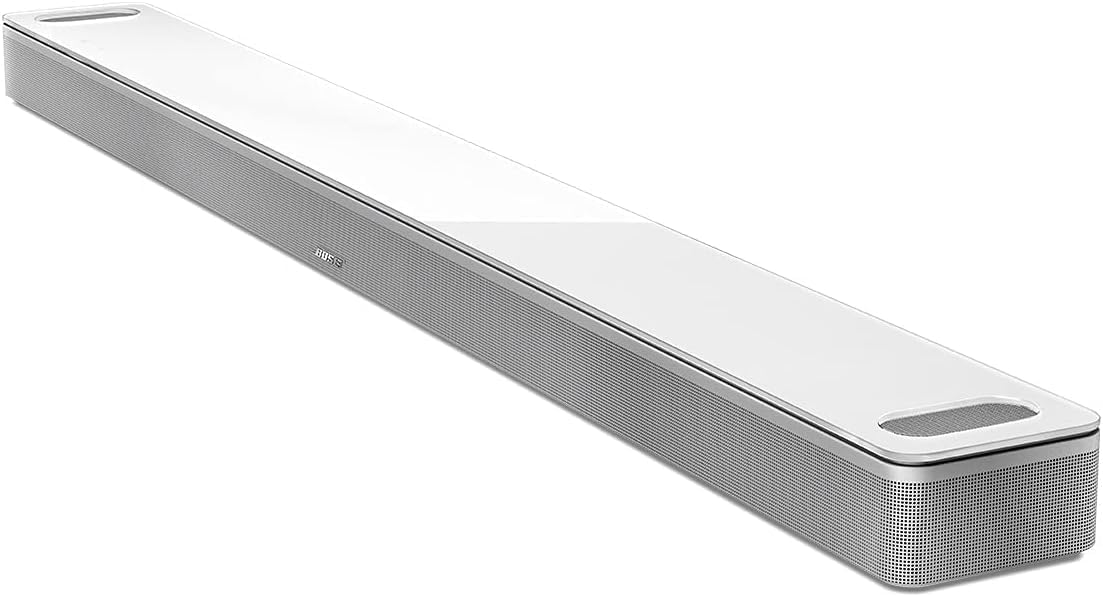
Why Is Dialogue Unclear on My Bose Soundbar?
- Dialogue Mode not turned on
- Dialogue level too low
- Bass/EQ set high, masking speech
Problem Description
Your Bose Smart Soundbar is having audio or sound quality issues that affect playback, voice responses, or speaker output. Sound problems with the Smart Soundbar can range from no audio at all to distortion, low volume, or intermittent cutouts. Specifically, the issue involves soundbar dialogue unclear. The steps below walk you through diagnosing the root cause and applying proven fixes so your Smart Soundbar works reliably again.
Why This Happens in Real Homes
When dialogue is unclear on a Bose soundbar while the rest of the audio sounds full, the solution is Dialogue Mode, which specifically boosts the center-channel frequencies where speech sits. Simply raising the overall volume doesn't help - it lifts the loud effects and music by the same amount, so speech stays proportionally buried. Turning on Dialogue Mode in the Bose Music app and increasing the dialogue level targets voices directly, which is what actually makes them clearer.
The supporting factors are about balance and calibration. Heavy bass or a boosted EQ can mask the vocal range, so easing those improves intelligibility, and if you're running a bass module or surround speakers, levels set too high relative to the center channel drown out dialogue - balancing them helps. Running ADAPTiQ tunes the soundbar to your room's acoustics so voices reproduce more naturally. Some movies and shows are just mixed with quiet dialogue and loud action, and Dialogue Mode exists precisely for that content. Making sure the TV outputs an audio format the soundbar reproduces well, and keeping firmware updated, complete the picture.
Symptoms
- Dialogue hard to hear over music and effects
- Constantly adjusting volume for speech
- Voices muffled in busy scenes
- Speech clarity varies by show/movie
- Center-channel voices buried
- Effects drown out the dialogue
- Turning up volume overwhelms the room
- Unclear speech even at higher volume
Recognize these? Here's what usually causes it.
Common Causes
- Dialogue Mode not turned on
- Dialogue level too low
- Bass/EQ set high, masking speech
- Content mixed with low dialogue vs loud effects
- Room not calibrated with ADAPTiQ
- TV audio format not ideal for the soundbar
- Bass module/surround levels overpowering speech
- Firmware out of date
Most fixes happen in the first 3 steps.
Smart speakers are always listening for the wake word when unmuted. Review and delete your voice history regularly in the app privacy settings. Never place the speaker in bathrooms or near water sources as moisture can permanently damage internal components.
Step-by-Step Solution
Enable Dialogue Mode first
In the Bose Music app, tap your soundbar and go to Settings > Dialogue Mode > On. This is the fastest fix for unclear dialogue. Dialogue Mode applies a targeted EQ boost to the speech frequency range (1-4 kHz) and slightly reduces low-frequency effects that compete with voice. Most users find this resolves the issue immediately. Leave it on permanently unless you are listening to music only (where Dialogue Mode colors the mix).
Set the TV audio output to PCM
Go to your TV Settings > Sound > Audio Output Format. Change from Auto or Bitstream to PCM (sometimes called Stereo PCM or 2-channel PCM). PCM sends uncompressed audio to the soundbar, and the soundbar handles all decoding and processing. Some TVs re-encode the audio poorly when set to Bitstream, which compresses dialogue levels. PCM is the most reliable format for clear speech.
Reduce bass and increase treble
In the Bose Music app, adjust the EQ: reduce Bass by -2 to -4 and increase Treble by +1 to +2. Excessive bass masks the speech midrange, making dialogue sound muffled. The consonant sounds that make speech intelligible (S, T, K, F) sit in the treble range — a slight treble boost sharpens these sounds. If you have a Bose bass module, lower its level as well — the subwoofer contribution can overwhelm dialogue in small rooms.
Check the source audio quality
Dialogue clarity varies by content and streaming service. Cable TV and some streaming services use heavy audio compression that reduces dialogue volume relative to effects. Switch to a higher quality audio stream if available — on Netflix, go to Account > Playback Settings > High. On Disney+, check that the audio track is set to English 5.1 (not Atmos if your setup does not support it — mismatched Atmos decoding can cause dialogue drops).
Adjust seating position or soundbar aim
If you sit far off to one side of the soundbar, dialogue (which is primarily center-channel) may be quieter at your position. The Soundbar 900 and 700 have wide dispersion, but extreme angles still reduce center clarity. The soundbar should be centered under or above the TV, aimed at ear height. If mounted on the wall above a fireplace, angle it slightly downward toward the seating area. Even a 5-degree tilt can improve dialogue clarity at the listening position.
Quick Solutions
Still having issues? This is usually the deeper cause below.
If this comes back after following these steps, check whether a recent app or firmware update reset a default setting — the fix works, but the setting gets reverted silently.
Place your speaker in a central location at ear height for best voice pickup. Avoid corners and bookshelves which muffle the microphones. If you have multiple speakers, set up multi-room audio groups so music plays in sync across rooms.
This issue almost always looks more complex than it is — the majority of cases trace back to a single setting, a stale credential, or a default that shipped wrong.
- Dialogue Mode not turned on
- Dialogue level too low
- Bass/EQ set high, masking speech
- Content mixed with low dialogue vs loud effects
- Room not calibrated with ADAPTiQ
Before you go — try one of these (they fix most cases).
Most popular upgrades chosen by Bose Smart Soundbar owners.
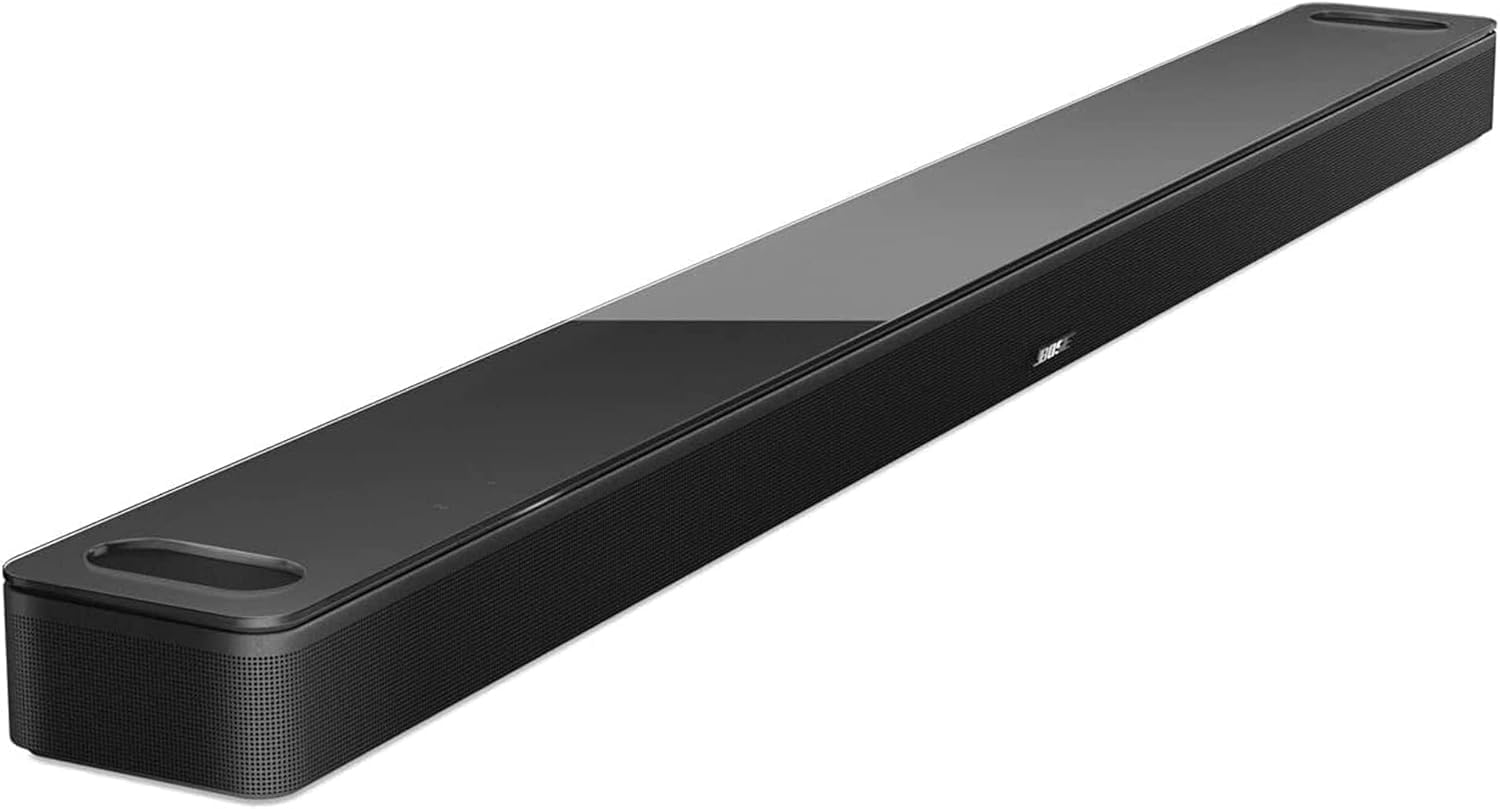
As an Amazon Associate we earn from qualifying purchases.
Official Manufacturer Manual
Bose provides official product documentation through their online manual rather than downloadable PDF. Access setup guides, troubleshooting steps, and product specifications for your Bose Smart Soundbar.
Source: support.bose.com
Need More Help? Bose Support
Note: The contact information below connects you directly to Bose's official customer support team, not Trunetto. They can help with warranty claims, device replacements, and advanced technical issues.