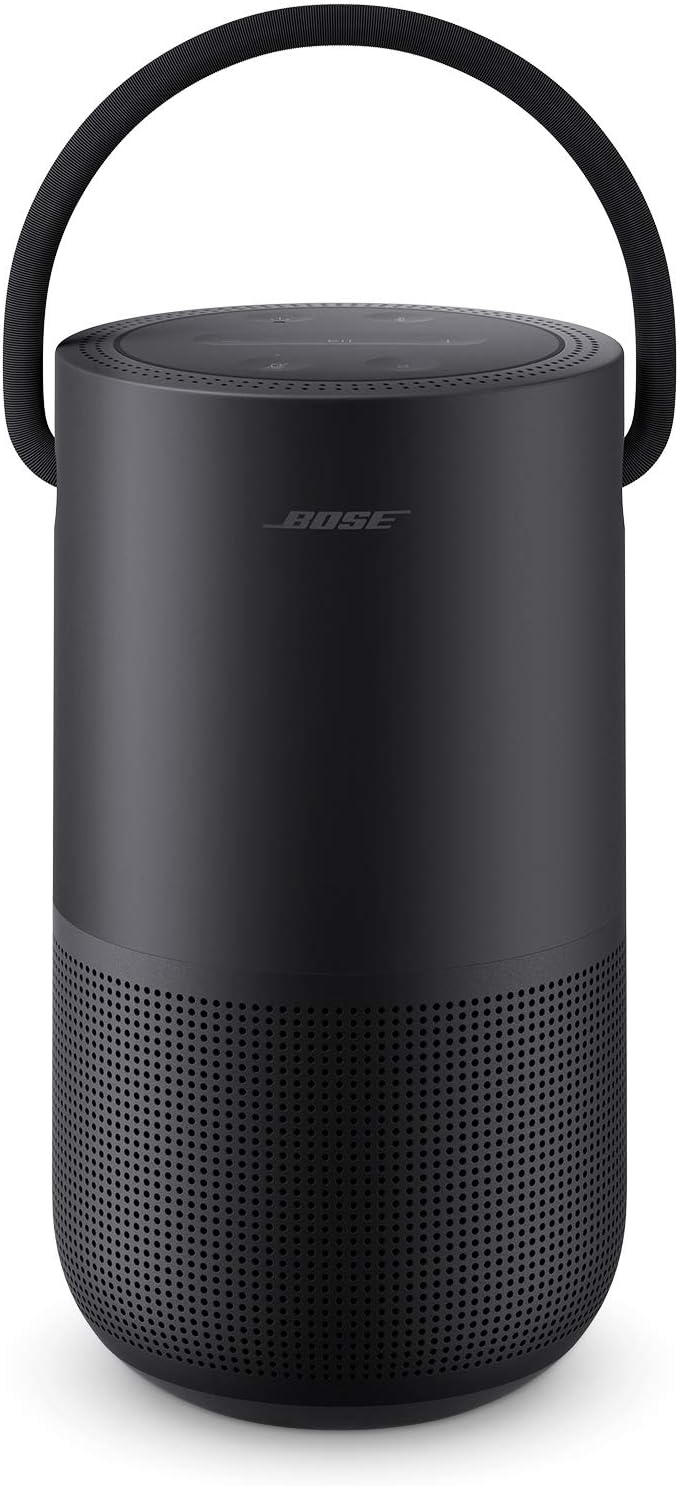
How Do I Update My Bose Speaker Firmware?
- Weak or dropped WiFi during the update
- Power interrupted mid-update
- Bose Music app out of date
Problem Description
You want to update your Bose speaker or soundbar firmware, or an update is failing or stuck. Bose products update through the Bose Music app when connected to WiFi, or via the web updater (btu.bose.com) over USB if the app method won't complete. This guide covers running the update, recovering a stuck update, and why keeping firmware current fixes many issues.
Why This Happens in Real Homes
Bose firmware updates normally happen automatically through the Bose Music app when the speaker is on WiFi - the app notifies you and applies the update. Because the update downloads over your network, the two things that break it are a weak or dropping WiFi connection and a power interruption mid-update, either of which can leave the speaker stuck or rebooting. Give the update the best conditions: a strong WiFi signal, power left on, the Bose Music app open and in the foreground, and the app itself updated to the current version first, since an out-of-date app can fail to push firmware.
If the in-app update won't complete or the speaker is stuck after a failed attempt, Bose provides a web-based updater at btu.bose.com that updates the speaker over a USB connection to a computer - this is the reliable recovery path when the app method fails, and it can rescue a speaker left in a bad state. A power cycle often frees a stuck update so you can retry, and a factory reset with re-setup clears a corrupted firmware state as a last resort. Keeping firmware current is worth the effort because many audio, connectivity, and voice-assistant bugs are fixed in updates.
Symptoms
- Update won't start or complete in the app
- Update stuck partway or the speaker keeps rebooting
- Speaker unresponsive after an update attempt
- App says an update is available but it fails
- Speaker offline during the update
- Update very slow
- Features/fixes missing until updated
- Update loops or errors out
Recognize these? Here's what usually causes it.
Common Causes
- Weak or dropped WiFi during the update
- Power interrupted mid-update
- Bose Music app out of date
- Speaker offline or on a congested network
- Update server/temporary Bose-side issue
- Update needs the app open/foreground to proceed
- Corrupted state from a prior interrupted update
- App method failing (needs the USB web updater)
Most fixes happen in the first 3 steps.
Smart speakers are always listening for the wake word when unmuted. Review and delete your voice history regularly in the app privacy settings. Never place the speaker in bathrooms or near water sources as moisture can permanently damage internal components.
Step-by-Step Solution
Check current firmware version
In the Bose Music app, tap your speaker or soundbar. Go to Settings > About > Software Version. The current firmware version is displayed (e.g., 7.2.1). The app shows if an update is available. Bose releases firmware updates periodically to fix bugs, add features, and improve voice assistant integration. Updates are strongly recommended — they often fix specific audio issues or connectivity problems.
Install the firmware update
When an update is available, the Bose Music app shows a notification or banner on the product page. Tap Update Now. Keep the speaker or soundbar plugged in and connected to WiFi throughout the update. Do not unplug or power off during the update — an interrupted update can leave the speaker in a non-functional state. The update downloads and installs in 10-20 minutes. The speaker reboots automatically after installation.
Force check for updates
If you think an update is available but the app does not show it: close the Bose Music app completely and reopen it. Pull down on the My Products screen to refresh. If the update still does not appear, check your internet connection. Bose rolls out updates gradually — your speaker may receive the update a few days after other users. There is no way to manually force a firmware file onto Bose speakers through the app.
Fix a failed firmware update
If the update failed and the speaker is unresponsive: unplug the speaker, wait 60 seconds, plug it back in. The speaker may retry the update automatically. If the speaker boots normally but the firmware version did not change, the download may have been interrupted — try again on a stable WiFi connection. If the speaker is completely stuck (no response, no LED), try the recovery procedure: hold the power button for 30 seconds while unplugged, then plug in while continuing to hold — the speaker enters recovery mode and downloads firmware from Bose servers.
Roll back firmware if the update caused issues
Bose does not officially support firmware rollbacks. If an update caused a new issue (worse audio, connectivity problems), check the Bose community forums for known issues with the latest firmware version and potential workarounds. Report the issue to Bose support — if many users report the same problem, Bose typically releases a patch update within a few weeks. In the meantime, adjust settings (EQ, ADAPTiQ, voice assistant) to work around the issue.
Quick Solutions
Still having issues? This is usually the deeper cause below.
If the device became unresponsive after a firmware update, a factory reset usually clears the corrupted state — the update itself is rarely the root cause.
Place your speaker in a central location at ear height for best voice pickup. Avoid corners and bookshelves which muffle the microphones. If you have multiple speakers, set up multi-room audio groups so music plays in sync across rooms.
Firmware updates that wipe settings are more common than brands admit — many devices silently reset to factory defaults on an OTA push with no warning.
- Weak or dropped WiFi during the update
- Power interrupted mid-update
- Bose Music app out of date
- Speaker offline or on a congested network
- Update server/temporary Bose-side issue
Before you go — try one of these (they fix most cases).
Most popular upgrades chosen by Bose Smart Speaker owners.

Bose Portable Smart Speaker — Wireless Bluetooth Speaker ...

Bose Portable Smart Speaker — Wireless Bluetooth Speaker ...

Bose Portable Smart Speaker — Wireless Bluetooth Speaker ...
As an Amazon Associate we earn from qualifying purchases.
Official Manufacturer Manual
Bose provides official product documentation through their online manual rather than downloadable PDF. Access setup guides, troubleshooting steps, and product specifications for your Bose Smart Speaker.
Source: bose.com
Need More Help? Bose Support
Note: The contact information below connects you directly to Bose's official customer support team, not Trunetto. They can help with warranty claims, device replacements, and advanced technical issues.