Why Won't My Bose Speakers Set Up Multi-Room?
- A speaker is Bluetooth-only (multi-room needs WiFi models)
- Speakers on different WiFi networks
- Weak WiFi causing sync drift/dropouts
Problem Description
Your Bose speakers won't set up multi-room audio. Multi-room requires compatible Bose speakers connected to the same WiFi network through the Bose Music app. Not all Bose products support multi-room — only speakers with WiFi capability (not Bluetooth-only models). This guide covers checking compatibility, grouping speakers, and fixing sync issues.
Why This Happens in Real Homes
Bose multi-room audio lets you play the same music in sync across several speakers, grouped in the Bose Music app - but it only works with WiFi-capable speakers, not Bluetooth-only models. That's the first compatibility check: a Bluetooth speaker simply can't join a multi-room group, because synchronization runs over WiFi. All the speakers you want to group also have to be on the same WiFi network and, ideally, on the same current firmware, since version mismatches cause grouping and sync problems.
Once compatibility is sorted, the enemy of multi-room is WiFi reliability. Keeping several speakers playing in perfect sync is bandwidth- and timing-sensitive, so a weak signal to any one speaker, a congested channel, or network isolation causes the classic symptoms: a speaker drifting out of sync, dropping out of the group, or the whole group stuttering. Strengthening coverage to every speaker's location, using a less congested channel, and making sure the speakers aren't on isolated/guest networks that can't see each other keep the group tight. Bring any offline speaker back online before grouping, and keep the whole set updated for the smoothest multi-room playback.
Symptoms
- Speakers won't group for multi-room audio
- Grouped speakers play out of sync
- One speaker drops out of the group
- Bluetooth-only model won't join multi-room
- Group won't hold together
- Audio stutters across grouped speakers
- Can't find a speaker to add to a group
- Multi-room works then falls apart
Recognize these? Here's what usually causes it.
Common Causes
- A speaker is Bluetooth-only (multi-room needs WiFi models)
- Speakers on different WiFi networks
- Weak WiFi causing sync drift/dropouts
- Speakers not all updated to current firmware
- One speaker offline in the Bose Music app
- Network congestion disrupting sync
- Mixed incompatible speaker lines
- Router isolating speakers from each other
Most fixes happen in the first 3 steps.
Smart speakers are always listening for the wake word when unmuted. Review and delete your voice history regularly in the app privacy settings. Never place the speaker in bathrooms or near water sources as moisture can permanently damage internal components.
Step-by-Step Solution
Check which Bose speakers support multi-room
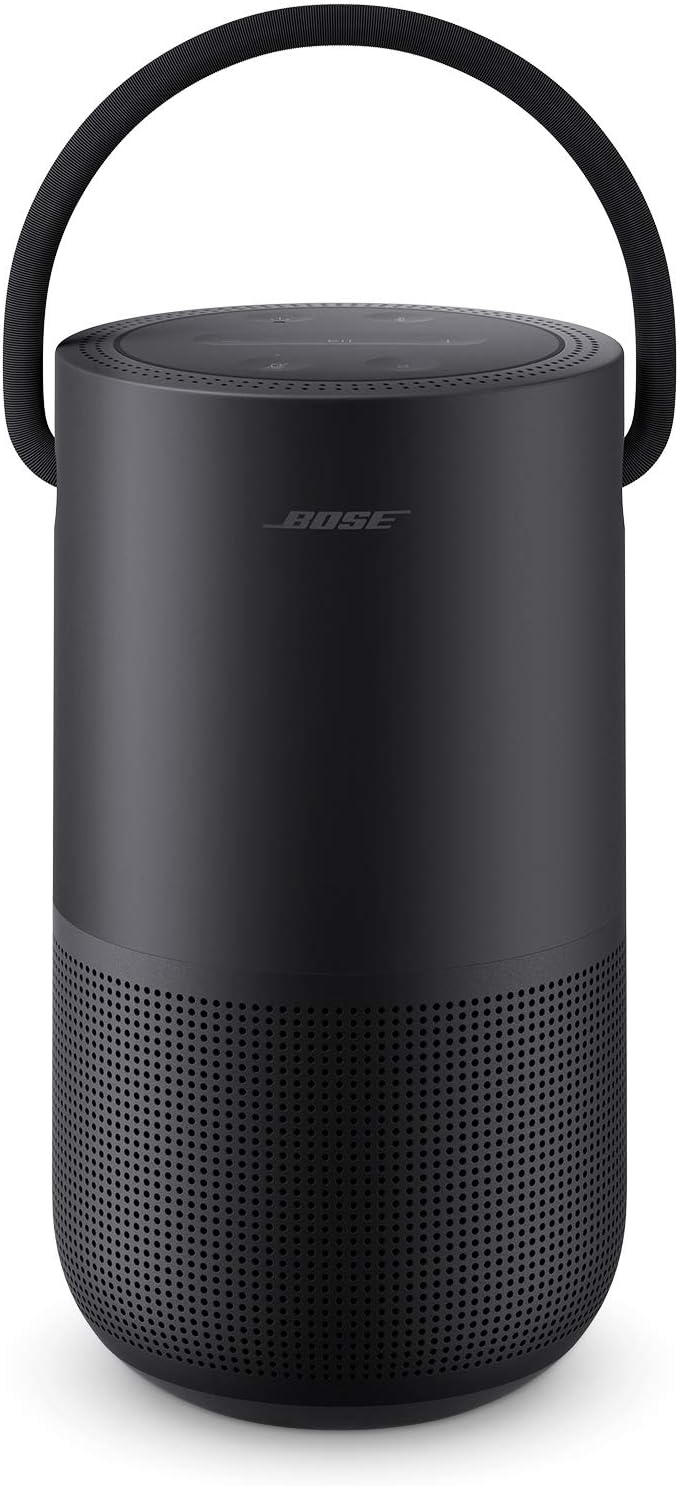
Multi-room audio works across Bose speakers that use the Bose Music app: Home Speaker 500, Home Speaker 300, Portable Home Speaker, Smart Soundbar 300/600/700/900. Older SoundLink and SoundTouch speakers are not compatible with Bose Music multi-room grouping (SoundTouch has its own multi-room system). All speakers in the group must be connected to the same WiFi network and updated to the latest firmware.
Create a speaker group in the Bose Music app
Open the Bose Music app. Start playing music on one speaker. Tap the Group icon (overlapping circles) on the Now Playing screen. The app shows all available Bose speakers on your network. Select the speakers you want to add to the group. The selected speakers join and play the same audio in sync. You can adjust each speaker volume independently — tap the speaker name in the group to get its volume slider.
Use Apple AirPlay 2 for multi-room with non-Bose speakers
All Bose Music-compatible speakers support AirPlay 2. You can group them with any AirPlay 2 speaker (HomePod, Sonos, other AirPlay speakers) through the AirPlay interface. On your iPhone or iPad, play music and tap the AirPlay icon. Select multiple speakers. AirPlay 2 handles synchronization. This is useful if you have a mix of Bose and non-Bose speakers throughout your home.
Fix sync issues between grouped speakers
If grouped speakers are slightly out of sync (audio from one room is delayed compared to another): check WiFi signal strength at each speaker location. A speaker on a weak WiFi signal processes audio slower, causing delay. Move the affected speaker closer to the router or add a WiFi extender. Also check for firmware mismatches — update all speakers to the same firmware version. If one speaker is consistently out of sync, remove it from the group, power cycle it, and re-add.
Set up whole-home audio zones
For practical multi-room use, create different groups for different scenarios. Morning group: kitchen and bathroom speakers. Evening group: living room soundbar and dining room speaker. You cannot save permanent groups in the Bose Music app — you create the group each time you want to play. However, Apple Home app lets you create speaker groups that persist. Add all Bose AirPlay 2 speakers to the Home app, create a room for each, and use grouped rooms for persistent multi-room playback.
Quick Solutions
Still having issues? This is usually the deeper cause below.
If this comes back after following these steps, check whether a recent app or firmware update reset a default setting — the fix works, but the setting gets reverted silently.
Place your speaker in a central location at ear height for best voice pickup. Avoid corners and bookshelves which muffle the microphones. If you have multiple speakers, set up multi-room audio groups so music plays in sync across rooms.
This issue almost always looks more complex than it is — the majority of cases trace back to a single setting, a stale credential, or a default that shipped wrong.
- A speaker is Bluetooth-only (multi-room needs WiFi models)
- Speakers on different WiFi networks
- Weak WiFi causing sync drift/dropouts
- Speakers not all updated to current firmware
- One speaker offline in the Bose Music app
Before you go — try one of these (they fix most cases).
Most popular upgrades chosen by Bose Smart Speaker owners.

Bose Portable Smart Speaker — Wireless Bluetooth Speaker ...

Bose Portable Smart Speaker — Wireless Bluetooth Speaker ...

Bose Portable Smart Speaker — Wireless Bluetooth Speaker ...
As an Amazon Associate we earn from qualifying purchases.
Official Manufacturer Manual
Bose provides official product documentation through their online manual rather than downloadable PDF. Access setup guides, troubleshooting steps, and product specifications for your Bose Smart Speaker.
Source: bose.com
Need More Help? Bose Support
Note: The contact information below connects you directly to Bose's official customer support team, not Trunetto. They can help with warranty claims, device replacements, and advanced technical issues.