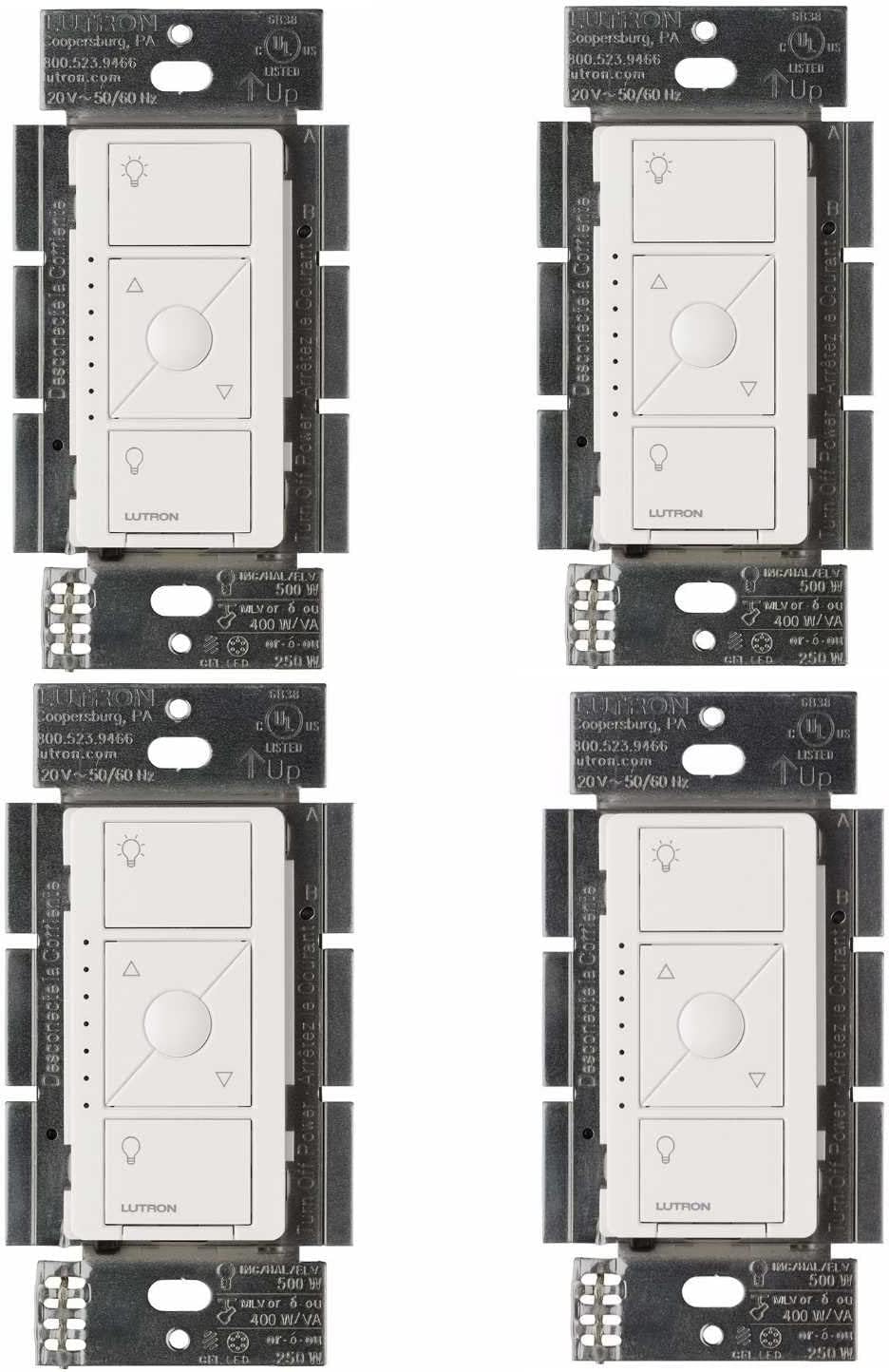
Why Is My Lutron Caseta Dimmer Not Responding?
- Lutron Smart Bridge lost network connection
- Dimmer needs to be re-paired with bridge
- WiFi router changed IP or channel
Problem Description
Your Lutron Caseta dimmer switch is not responding to app commands, Pico remote presses, or voice assistant requests. The lights may stay stuck on or off regardless of input. This typically indicates a communication breakdown between the dimmer, the Lutron Smart Bridge, and your home network.
Why This Happens in Real Homes
If your Lutron Caseta dimmer is not responding, the issue is usually between the dimmer, the Smart Bridge, or the local network path between them. In daily use, this often looks like app commands doing nothing, Pico remote presses not changing the lights, or voice assistants saying the device is unavailable.
Most cases trace back to the bridge dropping network connection, pairing drift between dimmer and bridge, or router changes that disrupted local communication. Make one change at a time so it is clear which step restores control.
A practical order is: restart the Lutron Smart Bridge, confirm bridge network status, re-pair the dimmer, then test with app and Pico remote. After each step, run the same on/off test that was failing before.
Symptoms
- Dimmer ignores app on/off commands
- Pico remote presses have no effect
- Alexa or Google says device is unresponsive
- Light stays stuck at one brightness level
- Dimmer LED blinks but light does not change
- Schedules and scenes stop executing
Recognize these? Here's what usually causes it.
Common Causes
- Lutron Smart Bridge lost network connection
- Dimmer needs to be re-paired with bridge
- WiFi router changed IP or channel
- Power outage caused bridge reboot
- Pico remote battery is dead
- Dimmer firmware needs update
Most fixes happen in the first 3 steps.
Lutron Caseta dimmers are designed for specific bulb types. Using incompatible LED bulbs can cause flickering or unresponsive behavior. Always check the Lutron compatibility list.
Step-by-Step Solution
Check if the dimmer has power
Look at the LED bar on the face of the Caseta dimmer. If no LEDs are lit at all, the dimmer has lost power. Check the circuit breaker for that room. If the breaker is fine, the dimmer may have a loose wire connection inside the wall box. Turn off the breaker, remove the wall plate, and check that the wire nuts are tight and no wires have come loose from the dimmer leads.
Try controlling the dimmer manually at the wall
Press the ON button directly on the dimmer. If the light responds to physical button presses but not to the app or Pico remote, the issue is communication with the Smart Bridge, not the dimmer itself. If the dimmer does not respond even to physical button presses, it is either a wiring issue or a failed dimmer.
Restart the Caseta Smart Bridge
Unplug the Smart Bridge from power, wait 15 seconds, and plug it back in. Wait 1-2 minutes for it to boot and reconnect to the Lutron cloud. Then try controlling the dimmer from the app. The bridge uses Clear Connect RF technology to talk to the dimmer — if the bridge lost its connection, restarting it usually re-establishes communication.
Check the range between the dimmer and bridge
The Caseta Smart Bridge communicates with dimmers over Clear Connect RF with a range of about 30 feet through walls. If the dimmer is far from the bridge (opposite end of the house, different floor), the signal may not reach. The first Caseta device added to the system acts as a range extender. Adding a Caseta plug-in dimmer midway between the bridge and the unresponsive dimmer can extend coverage.
Delete and re-add the dimmer in the Lutron app
If the dimmer responds physically but not through the app, remove the device from the Lutron app and add it again. In the app, go to the device settings, delete the dimmer, then tap Add Device and follow the pairing prompts. This forces the bridge to re-establish a fresh RF link with the dimmer. You will need to reassign it to the correct room and update any scenes or schedules.
Quick Solutions
Still having issues? This is usually the deeper cause below.
If flickering only happens on dimming, the issue is almost always the dimmer's minimum-load setting, not the bulb — it's drawing less current than the dimmer expects.
Keep the Smart Bridge in a central location with good ventilation. Avoid plugging it into a power strip that might get switched off accidentally. **Product Intelligence:** - Requires Caseta Smart Bridge - Clear Connect RF (not WiFi) - HomeKit/Alexa/Google compatible
This issue almost always looks more complex than it is — the majority of cases trace back to a single setting, a stale credential, or a default that shipped wrong.
- Lutron Smart Bridge lost network connection
- Dimmer needs to be re-paired with bridge
- WiFi router changed IP or channel
- Power outage caused bridge reboot
- Pico remote battery is dead
Before you go — try one of these (they fix most cases).
Most popular upgrades chosen by Lutron Caseta Dimmer owners.

Lutron Diva Smart Dimmer Switch with Wallplate and Pico S...

Lutron Caseta Deluxe Smart Dimmer Switch Kit, Compatible ...

Lutron Caséta Motion Sensor, Occupancy/Multi-Location, wi...
As an Amazon Associate we earn from qualifying purchases.
Official Manufacturer Manual
If you need the complete manufacturer documentation for advanced setup, wiring diagrams, or detailed specifications, you can download the official manual below. The manual includes full technical instructions directly from the manufacturer and may help if your issue requires deeper troubleshooting.
Download the Official Lutron Caseta Dimmer ManualSource: lutron.com
Need More Help? Lutron Support
Note: The contact information below connects you directly to Lutron's official customer support team, not Trunetto. They can help with warranty claims, device replacements, and advanced technical issues.
Accessories owners commonly pair with Lutron Caseta Dimmer.

Lutron Caseta Smart Lighting Smart Hub Repeater, Expands ...

Lutron Pico Remote for Audio, Works with Sonos (Caseta Sm...

LXLO Remote Wallplate Bracket, Perfectly Compatible with ...
As an Amazon Associate we earn from qualifying purchases.