Why Won't My Ring Chime Ring When Someone Presses the Doorbell?
- Chime not linked to the doorbell in the Ring app
- Chime ring volume turned down or muted in the app
- Chime on a different WiFi than the doorbell/account
Problem Description
Your Ring Chime or Chime Pro is plugged in and shows a blue light, but it does not ring or make any sound when someone presses your Ring doorbell. The doorbell itself works fine and sends notifications to your phone, but the indoor chime stays silent. This commonly happens after a WiFi change, power outage, or Ring app update.
Why This Happens in Real Homes
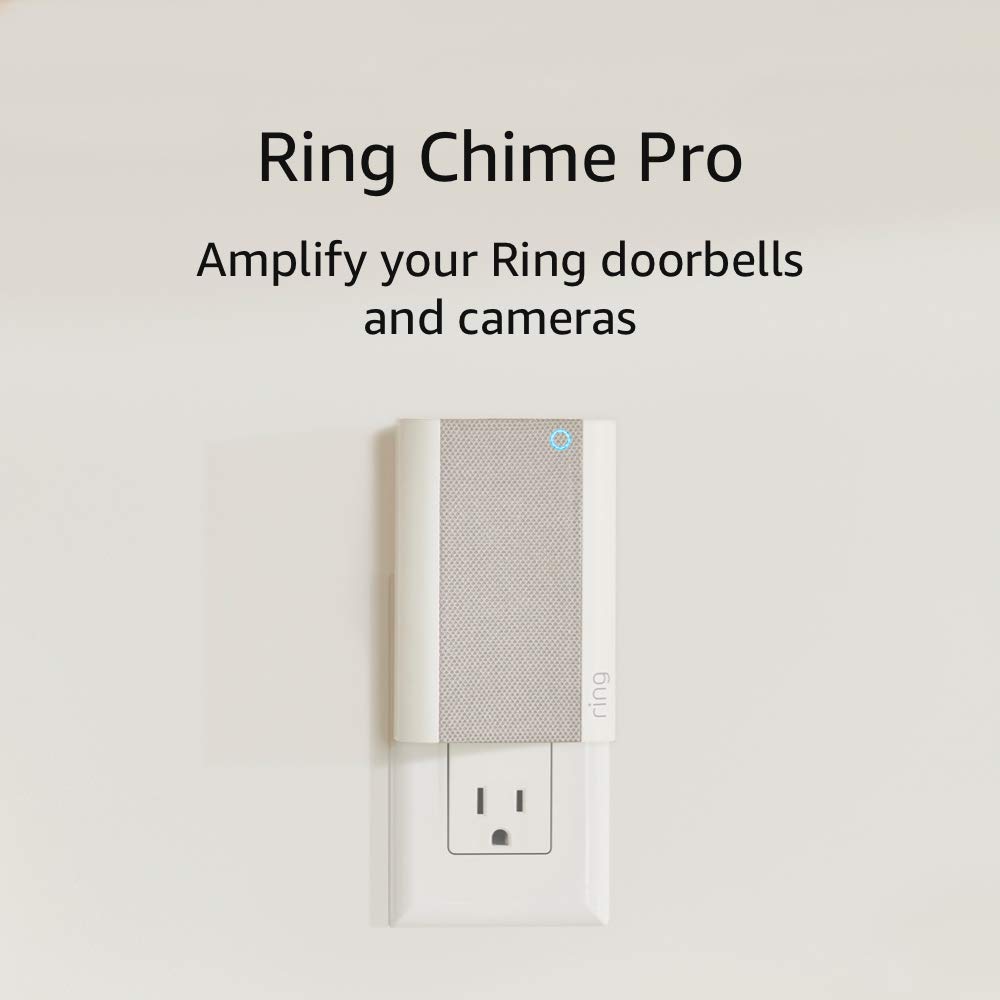
A Ring Chime (or Chime Pro) is a plug-in indoor speaker that rings when a linked Ring doorbell or camera is pressed - it's a WiFi accessory, not a hardwired mechanical chime, so it depends entirely on its app configuration and network connection. The most common reason it stays silent while your phone still gets notifications is that the Chime isn't actually linked to the doorbell: linking is per-device in the Ring app, and a WiFi change, app update, or adding a new doorbell can drop that association. Re-linking the Chime to the doorbell in its settings, and confirming both are on the same Ring account, fixes most cases.
If the link is intact, it's usually a sound setting or connectivity. The Chime has its own ring volume and its own Do Not Disturb / motion-snooze controls, and any of those turned down or on will silence it while notifications still reach your phone. A quick tell is the in-app chime test: if the test plays but real presses don't, the Chime hardware and volume are fine and the issue is the link or an alert-type toggle; if even the test is silent, check volume, DND, and then power-cycle the Chime. Because it's WiFi-dependent, a Chime that's offline can't ring at all, so make sure it's connected, update its firmware, and factory reset and re-add it as a last resort.
Symptoms
- Chime shows solid blue but makes no sound on a press
- Phone gets the doorbell notification but the Chime stays silent
- Chime worked before, stopped after a WiFi or app update
- Chime test in the app plays but real presses don't
- Multiple Chimes and only one stopped
- Chime LED flashes on a press but no audio
- Only ring alerts silent (motion alerts may work)
- Chime offline in the Ring app
Recognize these? Here's what usually causes it.
Common Causes
- Chime not linked to the doorbell in the Ring app
- Chime ring volume turned down or muted in the app
- Chime on a different WiFi than the doorbell/account
- Do Not Disturb or motion snooze enabled on the Chime
- Chime firmware update pending or failed
- Chime offline / lost WiFi
- Ring type (ring vs motion) toggled off for the Chime
- Speaker hardware fault after a power surge
Most fixes happen in the first 3 steps.
Factory resetting your Chime erases all settings including linked devices and custom ringtones. You will need to reconfigure everything after reset.
Step-by-Step Solution
Check Chime Linked to Doorbell
Open the Ring app and tap Devices. Select your Ring Chime and tap Linked Devices. Verify your doorbell appears in the linked devices list. If it does not appear, tap Link a Device and select your doorbell. The Chime will only ring for doorbells that are explicitly linked to it in this setting. Many users assume linking happens automatically but it requires manual setup.
Verify Audio Settings and Volume
In the Ring app go to your Chime settings and tap Chime Tones. Make sure a ringtone is selected and the volume slider is turned up. Also check Alert Tones for motion alerts. Tap the test button to confirm the Chime can produce sound. If you hear the test tone but not real doorbell presses the issue is linking not hardware.
Disable Do Not Disturb Mode
Check if Do Not Disturb or Motion Snooze is enabled. Go to your Chime in the Ring app and look for a crescent moon icon or snooze indicator. If enabled tap to disable it. Do Not Disturb silences the Chime completely and some users accidentally enable it without realizing.
Power Cycle the Chime
Unplug your Ring Chime from the wall outlet and wait 30 seconds. Plug it back in and wait for the front light to turn solid blue indicating it has reconnected to WiFi. Test the doorbell again. A simple power cycle clears temporary software glitches that can cause the Chime to stop responding to doorbell events.
Factory Reset If Still Silent
If the Chime still will not ring press and hold the button on the side for 15 seconds until the light flashes. This factory resets the Chime. Open the Ring app tap Set Up a Device and set up the Chime as new. Re-link it to your doorbell after setup completes. This clears any corrupted settings preventing audio playback.
Quick Solutions
Still having issues? This is usually the deeper cause below.
If this comes back after following these steps, check whether a recent app or firmware update reset a default setting — the fix works, but the setting gets reverted silently.
If you have multiple Ring Chimes make sure each one is individually linked to your doorbell. Linking one Chime does not automatically link others.
This issue almost always looks more complex than it is — the majority of cases trace back to a single setting, a stale credential, or a default that shipped wrong.
- Chime not linked to the doorbell in the Ring
- Chime ring volume turned down or muted in the
- Chime on a different WiFi than the doorbell/account
- Do Not Disturb or motion snooze enabled on the
- Chime firmware update pending or failed
Before you go — try one of these (they fix most cases).
Official Manufacturer Manual
Roborock provides official product documentation through their online manual rather than downloadable PDF. Access setup guides, troubleshooting steps, and product specifications for your Ring Chime.
Source: support.roborock.com
Need More Help? Roborock Support
Note: The contact information below connects you directly to Roborock's official customer support team, not Trunetto. They can help with warranty claims, device replacements, and advanced technical issues.
How Does Roborock Compare?
Before replacing your Roborock device, see how it stacks up against alternatives in our full comparison guides.
Accessories owners commonly pair with Ring Chime.

SANDISK 64GB Extreme microSDXC UHS-I Memory Card with Ada...

SANDISK 64GB Ultra microSDXC UHS-I Memory Card with Adapt...

SANDISK 256GB Ultra microSDXC UHS-I Memory Card with Adap...
As an Amazon Associate we earn from qualifying purchases.